
Graduation: How to Apply and Update Graduation Information
Last edit date: 4/9/2026
Purpose: This guide shows how to apply for graduation, update your degree name, and change your graduation term using the Graduation Application & Status card in RamPortal.
| Contents |
|---|
| Navigation |
| Apply for Graduation |
| Update Degree Name |
| Change Expected Graduation Term |
| Useful Links |
NAVIGATION
- Log in to RamPortal using your WCU Single Sign On (SSO).
- Locate the Graduation Application & Status card on your home page.
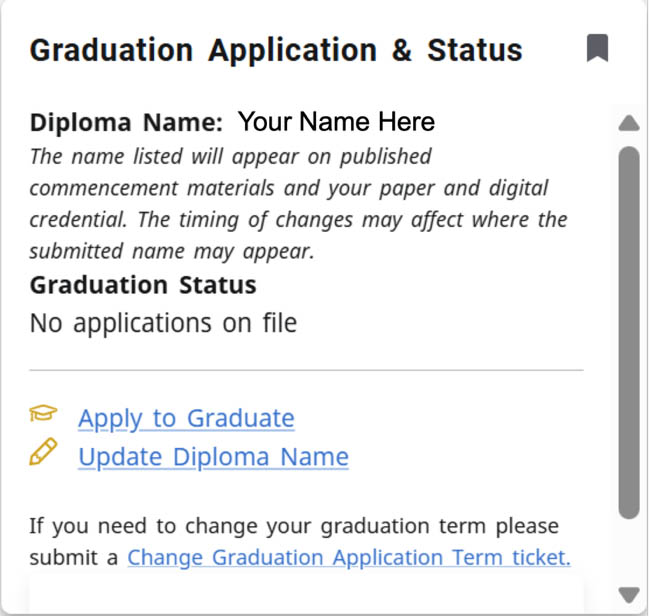
Fig. 1
APPLY FOR GRADUATION
- From the Graduation Application & Status card, select Apply to Graduate. See Fig 1.
- Confirm your Curriculum (major/degree) is correct.
- Carefully review the message at the top of the page.
- If incorrect, contact the Registrar’s Office before continuing.
- Select your degree, then click Continue. See Fig 2.
- If you are applying for multiple programs, you must submit a separate application for each program.
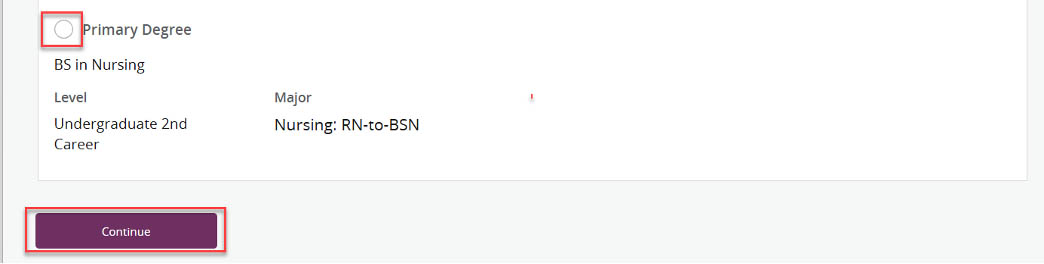
Fig. 2 - Select your Graduation Date, then click Continue. See Fig 3.
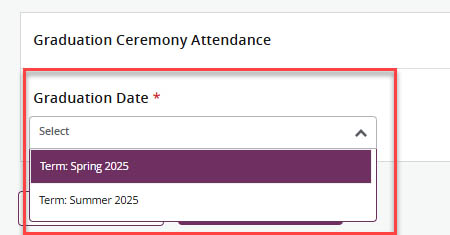
Fig. 3 - Choose whether you will attend the ceremony, then click Continue.
- Choose your Payment Method, then click Continue.
- Review the Graduation Application Summary.
- If correct, click Submit Request.
- If incorrect, click Back.
- Review the Acknowledgement page.
UPDATE DEGREE NAME
Use this option to update how your name will appear on your degree.
- From the Graduation Application and Status card, select Update Degree Name.
- Update your name and then click Save. See Fig 4.
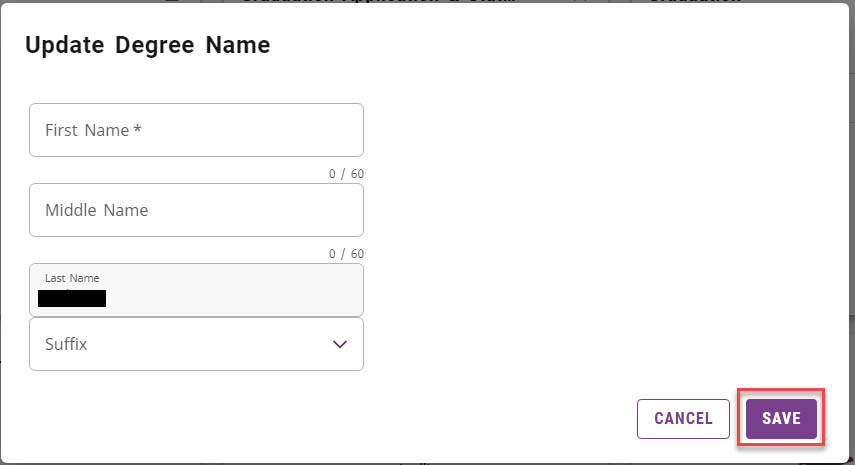
Fig. 4 - Return to your RamPortal homepage, where your updated name will display on the Graduation Application & Status card.
CHANGE EXPECTED GRADUATION TERM
Requests to change your expected graduation term are submitted to the Registrar’s Office for review.
- From the Graduation and Application status card, select the Change Graduation Application Term ticket link. See Fig 1.
- Complete the form:
- Choose Change Graduation Application Term as the challenge.
- Provide the remainder of the information and submit the form.
USEFUL LINKS
Additional resources can be found by scrolling down on the card in the Useful Links dropdown:
- Commencement Information
- Graduation Timeline
- Graduation Requirements Policy
- Learn about your Paper Credential
- Learn about your Digital Credential
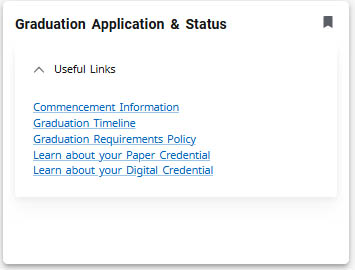
Fig. 5
For support, please submit an AES Support Portal ticket.