
Holds and Tasks: How to Manage Hold and Tasks
Purpose: This guide explains how to view and manage your Holds and Tasks in RamPortal.
| Contents |
|---|
| Navigation |
| Holds |
| Tasks |
NAVIGATION
- Login to RamPortal using your WCU Single Sign On (SSO).
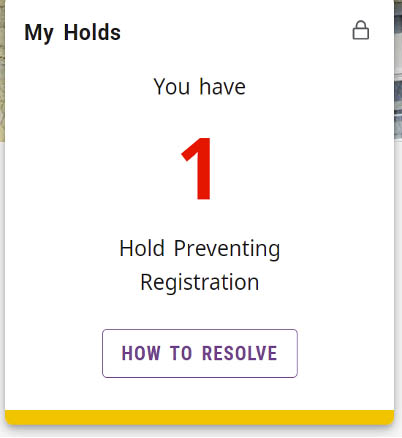
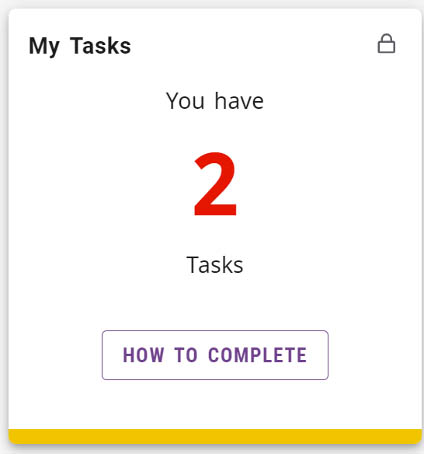
- Locate the My Holds and My Tasks card on your home page. Each card displays a counter showing the number of items
you have.
HOLDS
Important: Holds must be cleared before you can register for classes.
Steps to view and resolve holds:
- Open the My Holds card by clicking on the How To Resolve button.
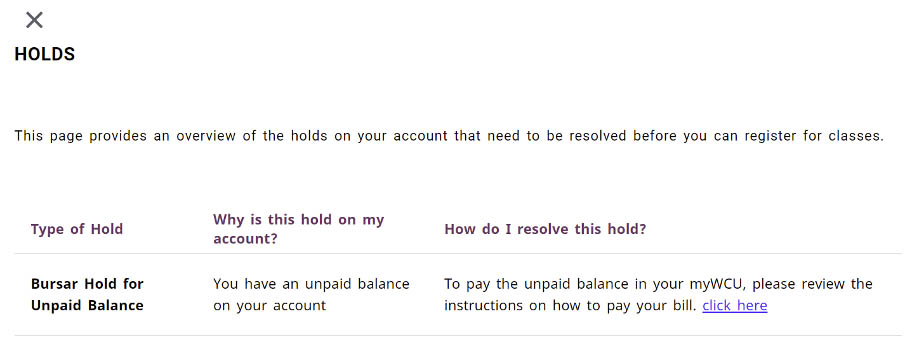
- Review the explanation of the hold and follow the steps provided. If you need help,
contact the office that issued the hold.
TASKS
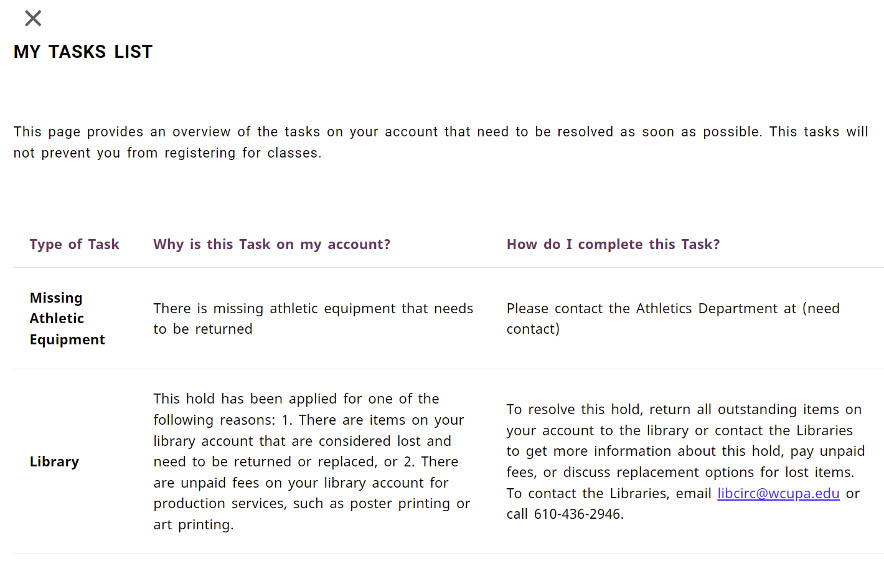
Tasks must be cleared but do not block registering for classes.
Steps to view and complete tasks:
- Open the My Tasks card by clicking on the How To Complete button.
- Review the explanation of the task and follow the steps provided. If you need help,
contact the office that assigned the task.
For support, please submit an AES Support Portal ticket.