
Transfer Credit Summary: Understanding Student Transfer Credits
Last edit date: 10/13/26
Audience: Faculty and Staff
Purpose: This guide explains how to access and understand a student's transfer credit summary in RamPortal.
| Contents |
|---|
| Navigation |
| Student Overview |
| Transfer Credit Details |
Navigation
- Log in to RamPortal using your WCU Single Sign On (SSO).
- Locate the Transfer Credit Summary card on your home page. If you need help finding cards, see the Home Page Navigation:
A Guide to the RamPortal Home Page.
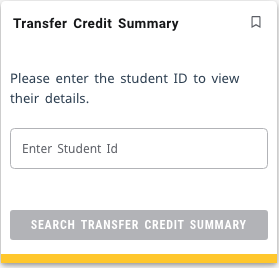
Fig. 1 - On the Transfer Credit Summary Card, enter the student's Banner ID (W0XXXXXXX), and select Search Transfer Credit Summary.
Student Overview
The top of the Transfer Credit Summary includes a quick student overview, showing:
- The Student's Name and ID
- Cumulative Transfer Credit Total: The total number of WCU credit hours accepted from all transfer sources combined.
- Student Attributes: These highlight any credentials earned before enrolling at WCU that may affect how credits are applied, such as an Associate Degree or an Academic Passport.
- An additional Bachelor's Degree would also display here, if applicable.

Fig. 2
Transfer Credit Details
Below the student overview, the transfer credits are grouped by source, such as Advanced Placement (AP), or by other college and universities the student attended (Fig. 3). For each source, you will see:
- Course Equivalencies: This section shows transferred courses alongside the equivalent WCU course.
- Total WCU Credit Hours: This shows how many transfer credits from that source apply toward your WCU degree.
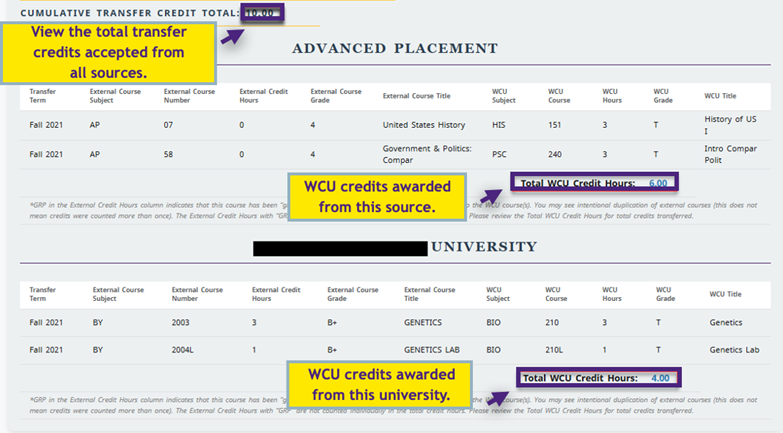
Fig. 3 Sample Transfer Credit Details
NOTE: Some awarded credits may be marked as Grouped (GRP) (Fig. 4). This means a single external course has been applied to more than one WCU course. These courses may appear on multiple lines but are only counted once toward the Total WCU Credit Hours.

Fig. 4
To see how the transferred credits apply toward degree requirements, be sure to review the Degree Audit in RamPortal.
For additional assistance, submit an AES Support Portal Ticket.