

Advising: Find My Advisor and Advising Notes
Purpose: This document provides instructions for students to locate their academic advisor and view their advising notes in RamPortal.
| Contents |
|---|
| Find My Advisor |
| View Advising Notes in the Degree Audit |
| Historical Advising Notes (Prior to August 2, 2024) |
FIND MY ADVISOR
- Login to Ramportal using your WCU Single Sign On (SSO) at ramportal.wcupa.edu.
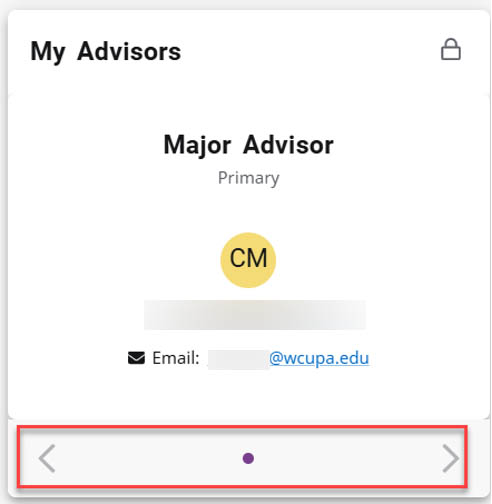
- Locate the My Advisor card on your homepage.
- Your advisor’s name and email will be displayed on the card.
- If you have more than one program of study, you may have multiple advisors. Use the
arrows at the bottom of the card to view additional advisors.
VIEW ADVISING NOTES IN THE DEGREE AUDIT
These are advising notes entered on or after August 2, 2024.
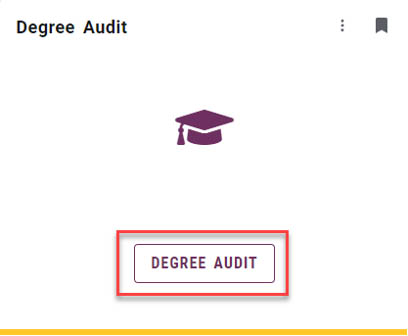
- Locate the Degree Audit card. For help with finding cards, visit Home Page Navigation: A Guide to the RamPortal Home Page
- Scroll to the bottom of the Degree Audit worksheet and find the Notes section. If no notes appear here, one of the following may apply:
- No advising notes have been added yet, or
- A note exists but has not populated in this section.

Example of the Notes Section at the bottom of the Degree Audit. - You can also view advising notes by clicking on the 3-dot menu (⋮) the upper right
corner of the Degree Audit screen and selecting Notes from the dropdown.
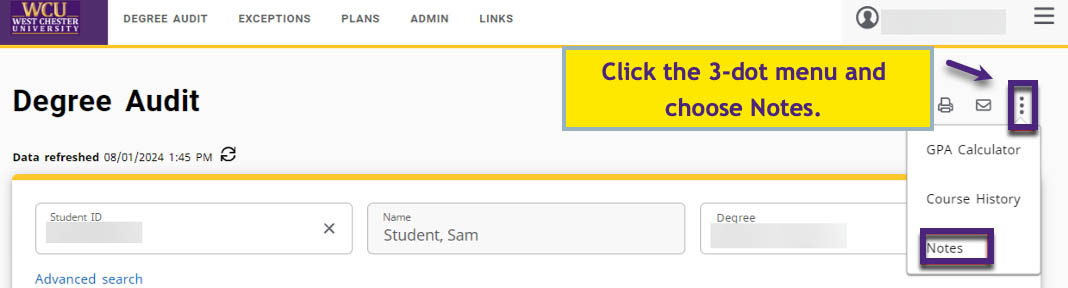
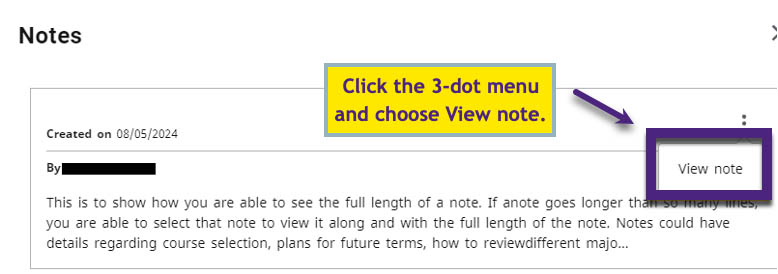
Viewing Advising Notes from the 3-dot menu - If a note appears shortened or cut off:
- Click the 3-dot menu (⋮) next to the note.
- Select View Note to open and read the full text.
HISTORICAL ADVISING NOTES (PRIOR TO AUGUST 2, 2024)
These are advising notes that were entered in myWCU before the switch to RamPortal.
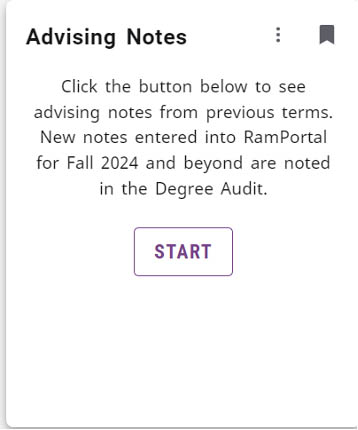
- Locate the Advising Notes card on your RamPortal homepage.
- Your historical advising notes will display automatically.
For support, please submit an AES Support Portal ticket.