
Degree Audit: Overview and Understanding Your Audit
Last edit date: 7/1/26
Purpose: This guide explains how to navigate your Degree Audit, use its features, and understand how degree requirements are organized.
NAVIGATION
- Login to Ramportal using your WCU Single Sign On (SSO).
- Locate and open the Degree Audit card on your home page (Fig. 1).
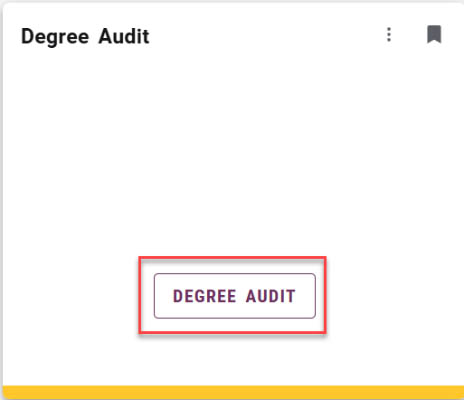
Fig. 1: Degree Audit Card
OVERVIEW
The Degree Audit helps you track your progress toward degree completion by showing how your courses apply to your requirements. It also lets you explore how your completed courses fit into other academic programs.
Note: Although the Degree Audit includes a Plans feature, students and advisors should use the Plan Ahead feature in RamPortal from the Register for Classes page when planning future semesters.
TOOL BAR FEATURES
At the top right of the Degree Audit page, you will see a set of icons that give you quick access to some important features:
- Print icon: Creates a PDF that you can print or share.
- Email icon: Displays your advisor’s email address.
- Three dot menu (Fig. 2): Opens a drop down with:
- GPA Calculator: Offers Graduation, Term, and Advice Calculator options.
- Course History: Displays completed courses by term including title, grade, and credits.
- Notes: View advisor notes entered after August 4, 2024
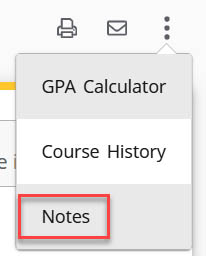
Fig. 2: Example of the Toolbar and the three-dot menu drop down.
STUDENT INFORMATION
Student Information is displayed at the top of the Degree Audit (Fig 3). It includes:
- Student ID and name
- Degree(s) being pursued (with a dropdown to switch between degrees if more than one exists in RamPortal)
- Level, class, major, minor or concentration (when applicable)
- Admit term, admit type, and campus
- Total Credits at admission or total transfer credits (for transfer students)
- Holds and assigned advisor(s)
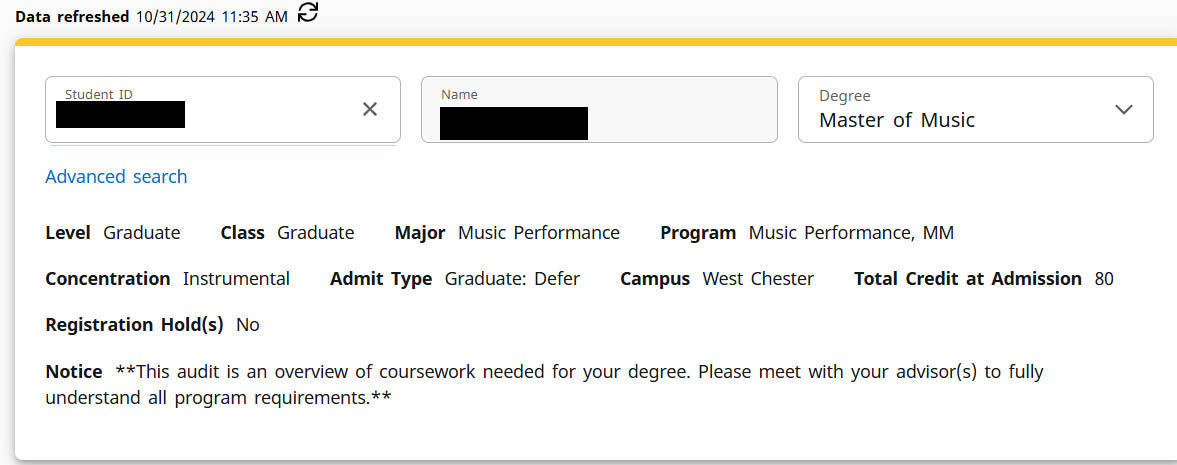
Fig 3: Example of the Student Information Section.
ACADEMIC SUMMARY
This section includes:
- Format Options: This dropdown controls how your audit is displayed. It defaults to Student View, which provides the most information. You can also select Registration Checklist, which filters the audit to display only those courses still needed to fulfill program requirements.
- GPA: Displays your current cumulative GPA. This is the only place in the audit where the overall GPA appears. All other sections will display the GPA within that specific area.
- In-Progress/Preregistered Courses: These checkboxes allow you to include or exclude courses that are currently in progress or scheduled for a future term. By default, both are included in the audit. Tap Refresh Audit to apply new changes.
- Audit Date: Shows the last time your audit was processed. The audit updates automatically when academic changes occur, such as registration, curriculum updates, or grades are entered. You can also run a new audit manually by tapping on the Refresh Audit button.
- Save Audit: A link below the section allows you to save a copy of the audit.
- View Historic Audit: A dropdown menu at the top right of the section lets you review previously generated audits.
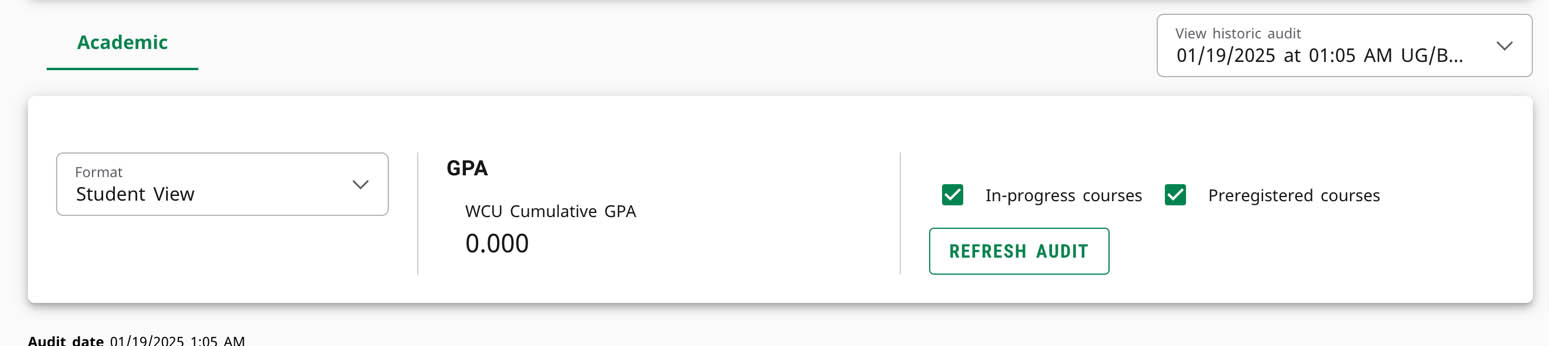
Fig 4: Example of the Academic Summary Section
DEGREE AUDIT BLOCKS
Degree Audit blocks organize your academic requirements into sections that show your progress toward graduation. Each block focuses on a specific requirement area, i.e., General Education, Major, or Minor.
All students will have the Degree Block and the Major Block. Additional blocks, such as minors, concentrations, or second major, will appear based on your individual academic program.
Next to each requirement, you will see a symbol that represents the status:
- Green circle with a check mark: Complete
- Red circle: Not Complete
- Half-filled blue circle: In progress (pending final grade)
- See additional symbols in the legend below. This legend can also be found at the bottom
of your audit.

Fig 5: Degree Audit Legend
DEGREE BLOCK
This top block summarizes your overall degree progress (Fig 6). It includes:
- Total credits required and applied
- Catalog year
- Links to additional blocks that make up your program (i.e. General Education, Major, Minor)
- Note: This block summarizes overall requirements. Individual course requirements are
located in the blocks linked below.
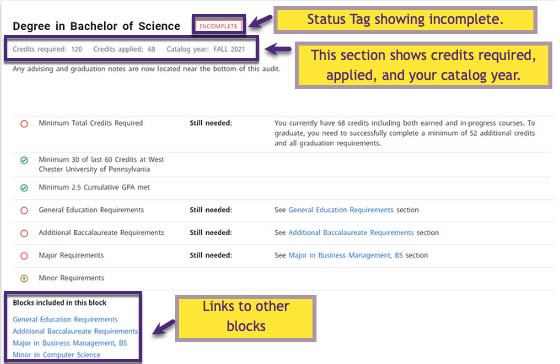
Fig 6: Example of Degree Block.
GENERAL EDUCATION BLOCK
This block lists the courses required to satisfy WCU’s General Education Program. For more information on specific program courses, access the current year Course Catalog via the Academics website.
ADDITIONAL BACCALAUREATE REQUIREMENTS
This block includes courses required in undergraduate programs of study, such as Writing Emphasis, Speaking Emphasis, and Language and Culture requirements. These will vary depending on your major and catalog year. For more information on specific program courses, access the current year Course Catalog.
MAJOR BLOCK
This section includes the specific course requirements for your major. The Major Block and other academic blocks (such as minors, concentrations, or additional majors) list course requirements that are found in the course catalog for your catalog year. The catalog year typically is the year you were admitted or the year you began your program.
You will see:
- A list of required courses.
- GPA for the major block. This is not your overall GPA. See the Student Information Section for your overall cumulative GPA.
- Completion status for each course.
- A status box that marks the block Incomplete or Complete when all the requirements are satisfied
For requirements that have not been completed, tapping on the blue course title will open a description with meeting times and registration information.
MINOR BLOCK
This block includes the courses required for any declared minor. You will see:
- A list of required courses for the minor.
- Credit and GPA requirements specific to the minor.
- Completion status for each course and for the overall block.
Depending on the program of study, courses may be shared between the major and minor. For example, if CSC 141 is a requirement for your major, it may also count toward a minor requirement if applicable.
ATTRIBUTES
Some degree requirements are tied to specific course attributes. For example, course requirements with a note such as attribute = WRT2 can be fulfilled by any course that has that specific attribute attached to it.
- Clicking on the attribute will open a list of courses that meet the requirement.
- This feature can be helpful when selecting electives and you want to see all the options available.
FALL THROUGH COURSES BLOCK
This block includes courses that do not currently apply to any degree requirements.
- Courses in the Fall Through section count towards the overall GPA but will not be calculated into the overall Major Block GPA, as they do not apply to a degree requirement at that time.
- Students are encouraged to speak with their advisor if they believe a course that is in the Fall Through section should be fulfilling an outstanding degree requirement. If a course is an approved substitute for a required course, advisors can submit a request to the Registrar’s Office to apply the course to an outstanding degree requirement. This does not apply to general education requirements, which would follow the normal course substitution process.
- You may notice courses in the Fall Through section which have NC/no credits listed but can also be found in the General Education section where credits are listed. In most cases, these are multicomponent courses which have a non-graded component. (Biology with lecture and lab, FYE, etc.) The lecture component gets the grade and credits and shows up in the General Education block. The discussion component would be non-graded and 0 credits and so would show up in the insufficient section. For example, BIO 110, is split up into BIO 110 (graded lecture) and BIO 110L (non-graded lab).
- Courses in the Fall Through section will not count toward CPOS (Course Plan of Study credits) for federal aid. Students should review the Fall Through section carefully during registration.
INSUFFICIENT BLOCK
This block contains courses that were not passed with an acceptable grade. For example, you will see courses with a final grade of F, withdrawn courses, or courses that were repeated and do not have earned credits attached to them.
BEST FIT ALGORITHM
Your Degree Audit uses a best-fit algorithm to apply courses to as many requirements as possible. Some courses may satisfy multiple requirements. Each time you refresh the audit, it will reassess placement based on new registrations or changes to your program.
REQUIREMENT TYPES
Requirements can be listed in the following ways:
- Course Type Requirements: These require a specific course (i.e., MAT 121). Only the course match is needed, not a credit total.
- Credit Requirements: These allow for any combination of courses adding up to the required number of credits. This is used for electives and General Education requirements.
For both types of requirements, you will see a list of courses or course options that
are still needed (Fig 7).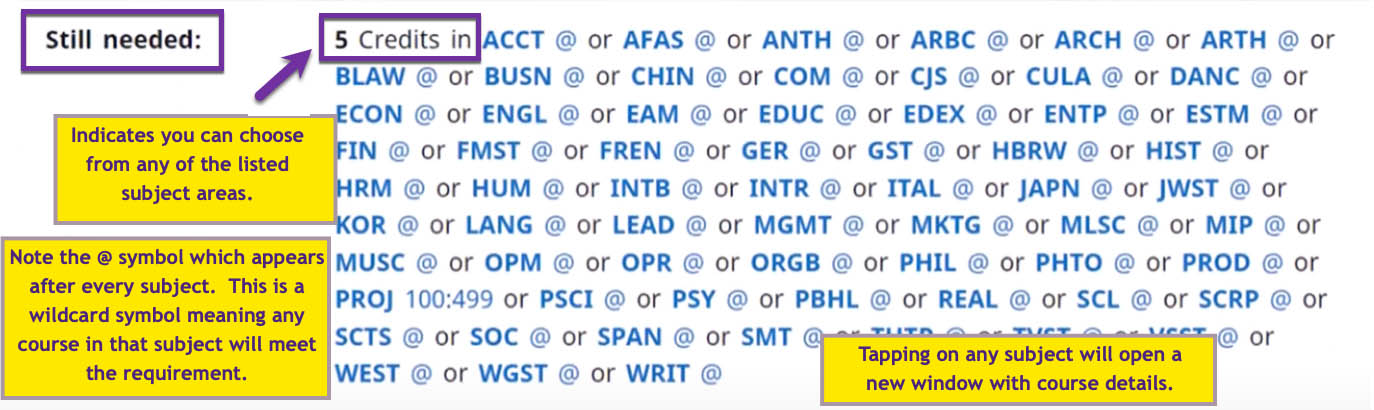
Fig 7: Example of Still Needed requirements showing a list of eligible subject areas.
TRANSFER COURSES
Transfer courses are generally displayed on your audit with the original grade earned and a note with the name of that school.
SYMBOLS AND FORMATTING NOTES
- The @ symbol is a wildcard meaning any course. For example, BIO @ means any course with a BIO subject code will meet this requirement.
- A course range (i.e., 100:499) means any course within that number range.

For support, please submit an AES Support Portal ticket.