

Housing Charges: How to View, Pay, and Apply Financial Aid
Purpose: This guide provides instructions for students to view housing charges, pay a balance, or apply excess financial aid toward University Student Housing (USH) charges using the University Student Housing card on the RamPortal homepage.
Important: The ability to authorize aid via the USH card becomes available once charges and bills are posted for the upcoming term. Once your aid has been fully disbursed, you will not be able to apply the aid to your charges. If there are questions or concerns, please submit an AES Support Portal ticket.
| Contents |
|---|
| Navigation |
| View Housing Charges |
| Apply Excess Aid to USH Charges |
| Common Errors |
NAVIGATION
- Login to Ramportal using your WCU Single Sign On (SSO) at ramportal.wcupa.edu.
- Locate the University Student Housing card on your home page. For help with finding cards, visit Home Page Navigation: A Guide to the RamPortal Home Page
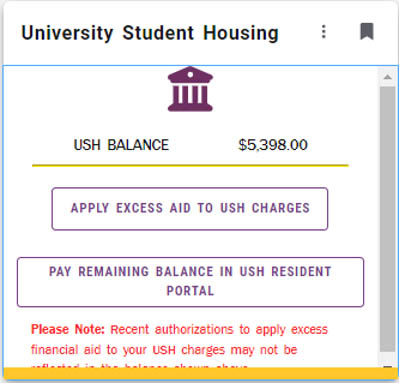
Fig 1: USH Card as it appears after bills are posted.
VIEW HOUSING CHARGES
Your current USH Balance is displayed in the middle of the card.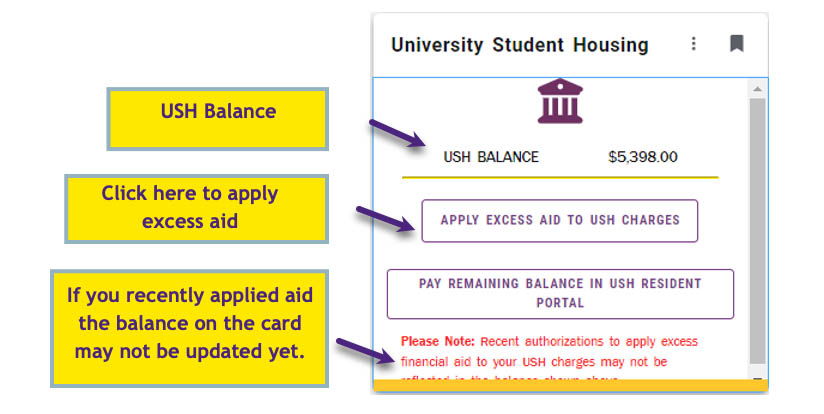
Fig 2: Example of USH Card showing Balance, Apply Excess Aid button, and Note about balance.
There is a red message at the bottom of the card stating: “Recent authorizations to apply excess financial aid to your USH charges may not be reflected in the balance shown above.” This means that if you recently applied aid, the balance on the card may not be updated yet.
APPLY EXCESS AID TO USH CHARGES
If you have excess aid available, you will have the Apply Excess Aid to USH Charges button visible on your card. If you don’t see this button, you don’t currently have excess aid available to apply.
To authorize aid:
- Click the Apply Excess Aid to USH Charges button (Fig 2).
- Complete the Student Information section (see Fig 3 below).
- Check the box to authorize WCU to apply the funds to your USH bill.
- In the USH Authorization Amount field, enter the amount of excess aid you’d like to apply.
- Check the Student Signature box.
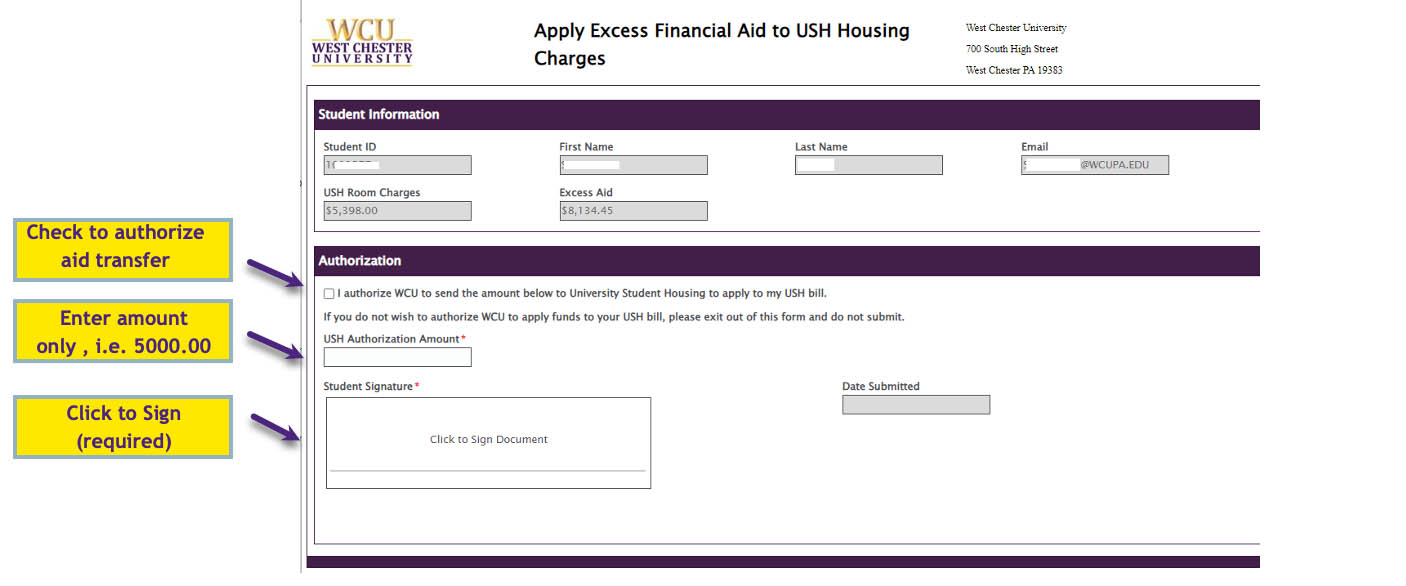
Fig 3: Example of Form showing Authorization check box, Amount, and Student Signature box. - Use your mouse to sign in the pop-up window, then click Apply Signature.
- The Date Submitted field will populate automatically.
- Click the Submit button at the bottom left to complete the process.
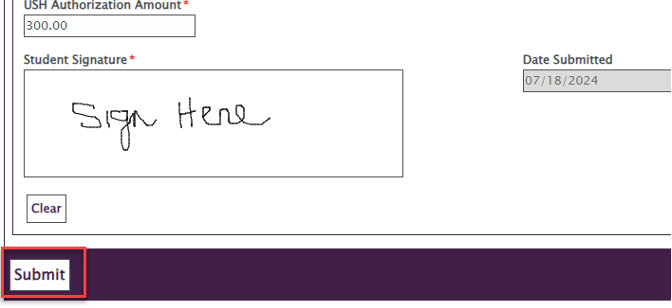
Fig 4: Completed form with signature. Submit to finalize approval.
COMMON ERRORS
- The amount must be less than or equal to your total housing charges. The amount must
also be less than or equal to your available excess aid. See Fig 5 below.
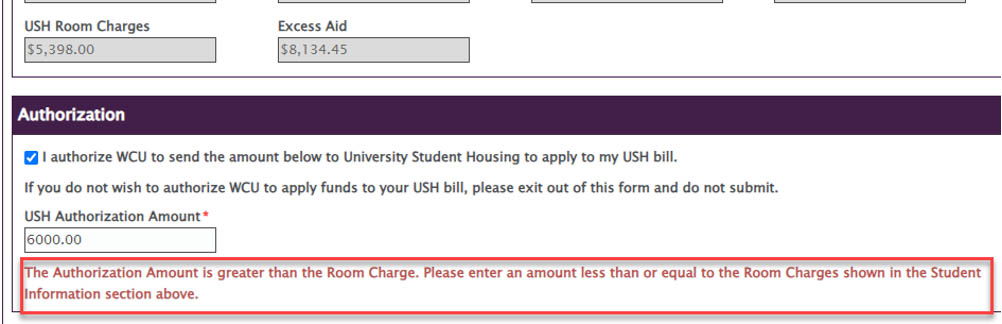
Fig 5: Example Error message when the authorization amount exceeds the room charge. - Do not include the $ symbol. Enter the amount as a number with decimal (i.e. 5000.00).
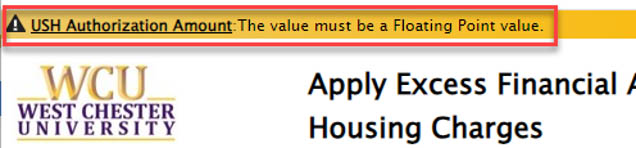
Fig 6: Error message triggered by using a dollar sign in the Authorization Amount field.
For support, please submit an AES Support Portal ticket.