

How to Update a Social Security Number
Last edit date:
Purpose: This document provides instructions for students to update their Social Security number via the RamPortal system.
| Contents |
|---|
| Navigation |
| Update Your Social Security Number |
NAVIGATION
- Log into RamPortal.
- Locate the Student Forms card.
- Click on the Self-Service Document Upload Form link (Fig 1).
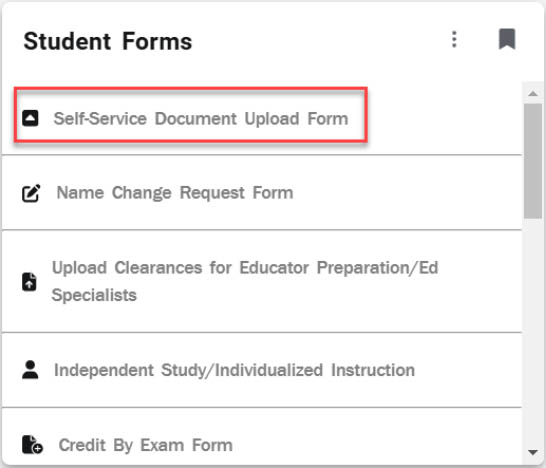
Fig 1
UPDATE YOUR SOCIAL SECURITY NUMBER
- Next, from the “Please Select the office for which you are uploading a document” dropdown,
choose BURSAR: UPDATE SOCIAL SECURITY NUMBER (Fig 2).
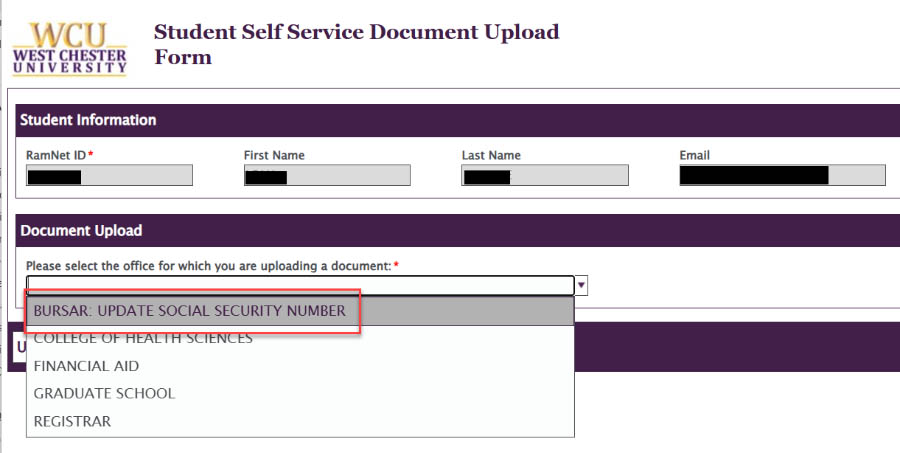
Fig 2 - Type your Social Security number is xxx-xx-xxxx format, then again in the Confirm
Social Security number box (Fig 3).
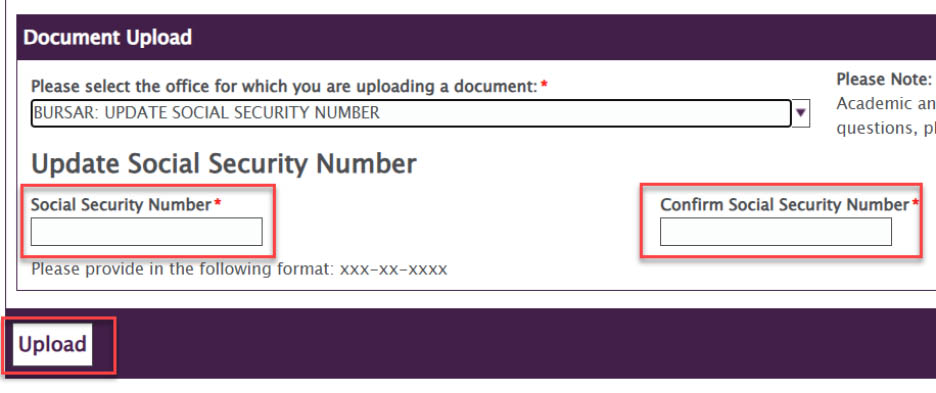
Fig 3 - Click “Upload”.
- You will then receive confirmation that the form has been saved.
For support, please submit an AES Support Portal ticket.