

Ram Fam Central Student Connections: Student Guide to Sharing Records
Last edit date: 8/27/2025
Purpose: Ram Fam Central allows you to share selected records with your family and supporters. This access is managed under FERPA (the Family Education Rights and Privacy Act) and WCU’s Privacy Policies. Granting access lets others view only the information that you choose but does not allow them to act on your behalf. Visit WCU FERPA Policy for additional information.
| Contents |
|---|
| Approving a Request for Access |
| Granting New Access |
| Additional Information |
| Related Guides |
APPROVING A REQUEST FOR ACCESS
- If a family member or supporter requests access, you will receive an email notification from families@wcupa.campusespmail.com with a subject line New Connection Request from Ram Fam Central.
- Open the email and select the Click here to approve this request button.

Fig. 1 - Enter your WCU username and password and then select Log In.
- On the Connections page, choose the pending NEW Connection Request.
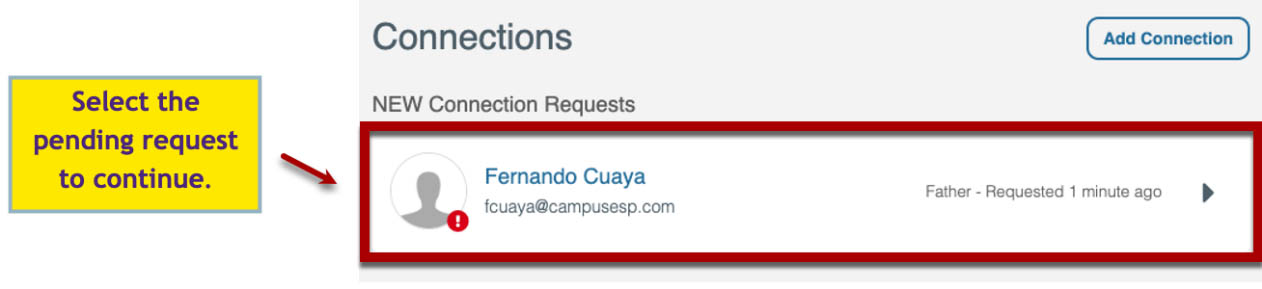
Fig. 2: Connections Page showing a new pending request. - On the Select records to share with screen (Fig. 3), choose which records you would like to allow access. You may share
all records or only specific.
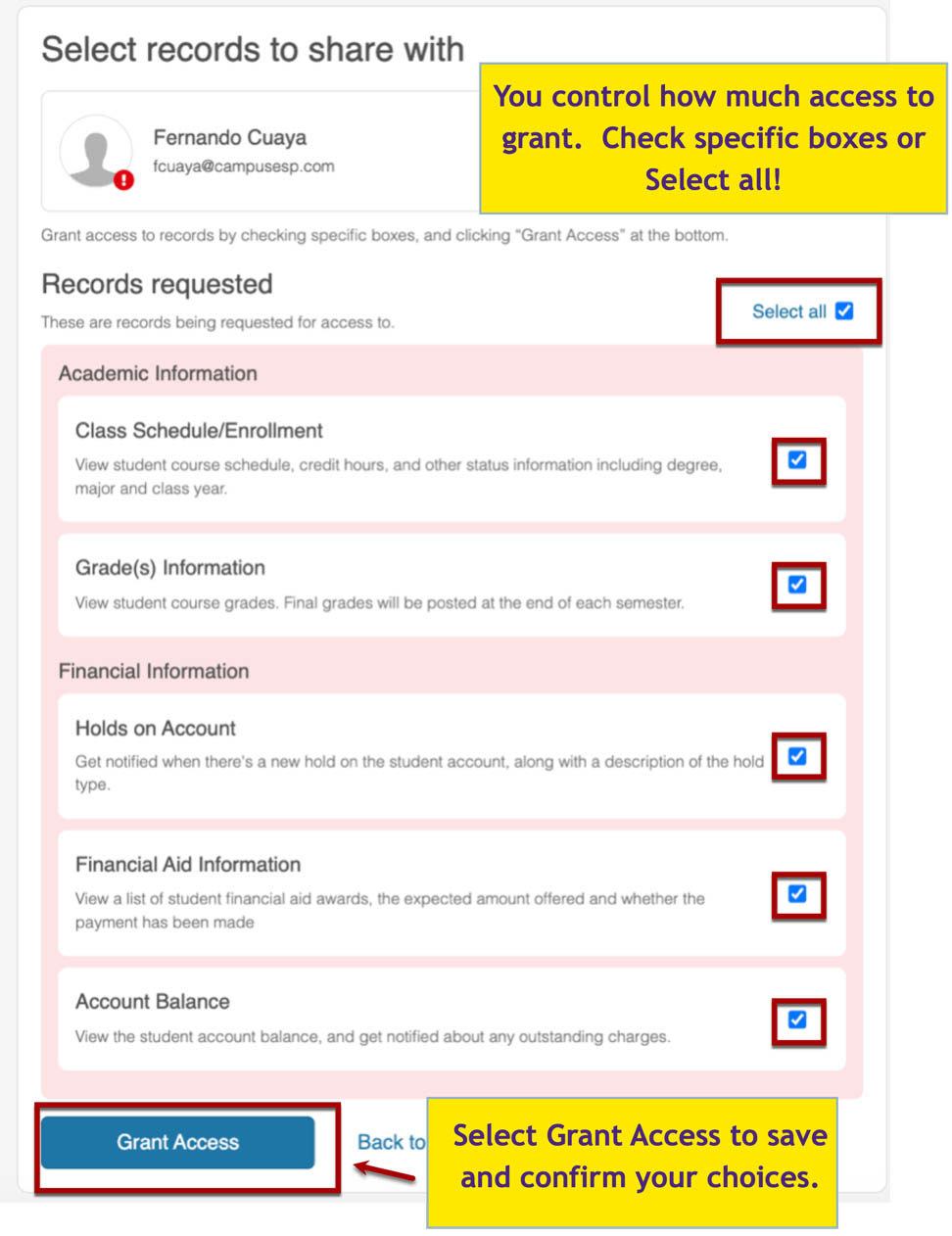
Fig. 3 - Select Grant Access.
- A confirmation banner will appear, and the request will update to show your Active Connections.
GRANTING NEW ACCESS
- Login to Ram Fam Central and select Are you a student or faculty button? Log in here.
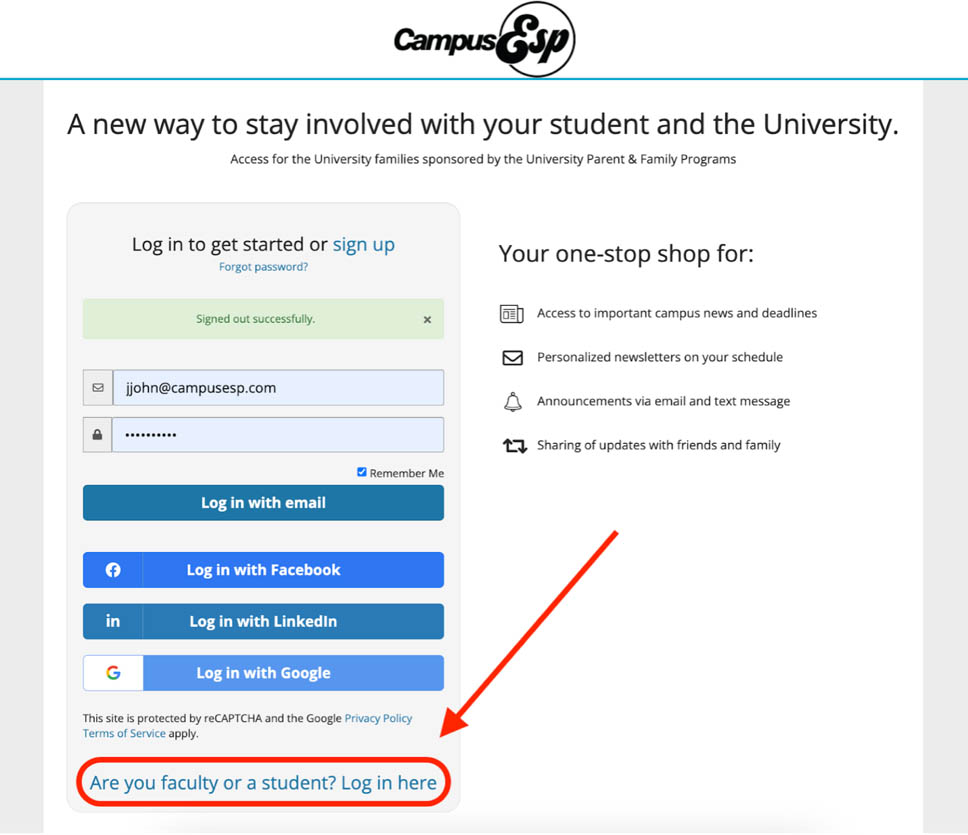
Fig. 4: Choose Are you faculty or student? Log in here. - Enter your WCU username and password and select Log In.
- On the Connections page, click Add My First Connection.
- Enter your Connection’s email address and choose their relationship in the dropdown.
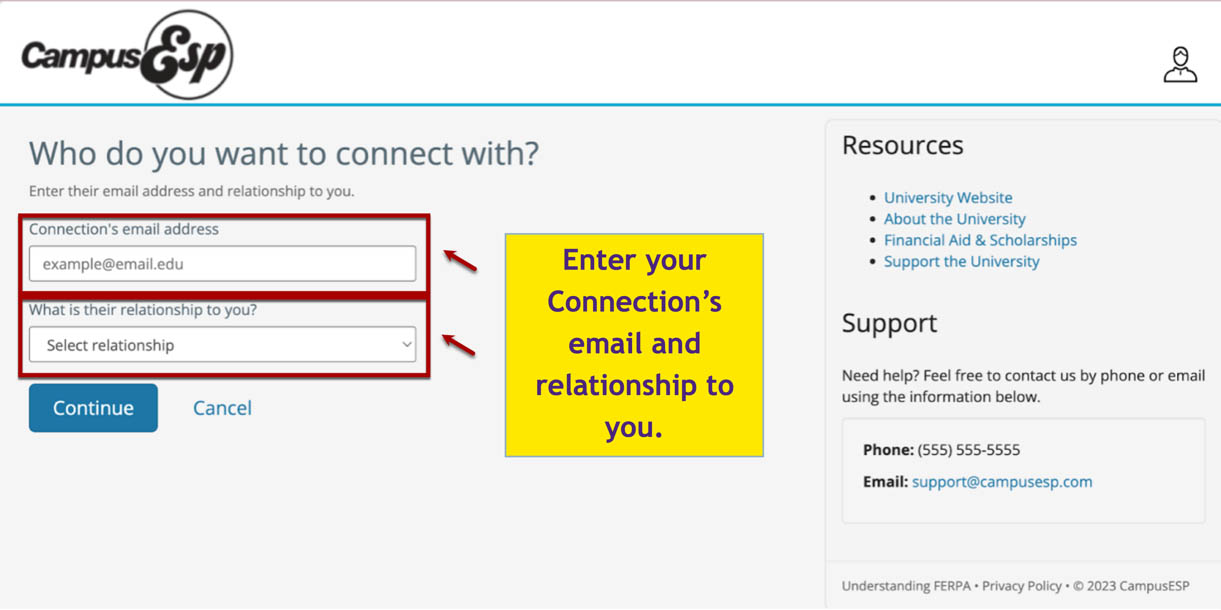
Fig. 5 - Select Continue.
- Choose the records you would like to share. (See Fig. 2)
- Click Grant Access.
- A confirmation banner will appear, and your Connection will receive an email with instructions to confirm the connection.
ADDITIONAL INFORMATION
- Your legal name will be displayed in Ram Fam Central.
- Your connections find you by using your WCU email address, not your name.
- Once you approve a connection, they will see your name on their dashboard.
- If you add a connection, the update occurs overnight (2 AM).
- If you remove a connection, the change takes effect immediately.
- Connections automatically expire after 5 years.
- Connections receive email notifications when data updates are available.
RELATED GUIDES
Related Guides found on the RamPortal Student Training Webpage:
For support, please submit an AES Support Portal ticket.