
Replacement Credentials: Ordering a Replacement Diploma or Certificate
Last edit date: 10/9/2025
Purpose: This guide is to order a replacement or reissued credential (diploma or certificate). West Chester University automatically orders your initial/original diploma soon after your degree is conferred.
| Contents |
|---|
| Before You Order |
| Confirm Your Degree on the Student Resource Page |
| Start Your Order in Parchment |
| Set Up an Account in Parchment |
| Order Your Replacement Credential |
BEFORE YOU ORDER
- Make sure your degree has been conferred (see steps below).
- If you earned multiple degrees, you’ll need a separate order for each.
- Clear any account holds that may block or delay your order.
- Remember: Diplomas are ceremonial documents, for official proof of degree, order an official transcript.
CONFIRM YOUR DEGREE ON THE STUDENT RESOURCE PAGE
- Contact the IS&T Help Desk at 610.436.3350 to request a temporary reactivation of your WCU credentials. Follow the steps provided to reset your password and login to the Student Resource Page.
- Choose Student Records and then Unofficial Transcript.
- Select the Transcript Level and Transcript Type (Unofficial Web Transcript) from the dropdown menus.
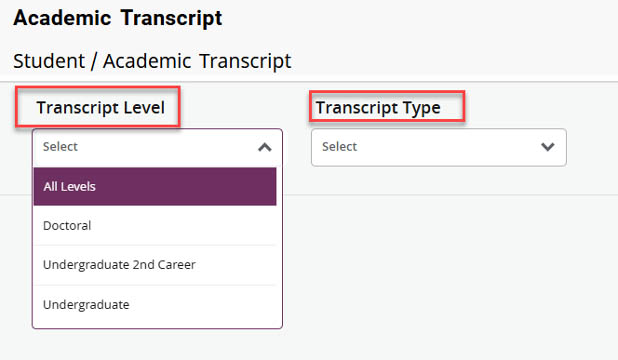
Fig. 2 - On the Degree Awarded tab, verify that the degree is listed here.
- For Dual degree students, search for additional degree.
START YOUR ORDER IN PARCHMENT
- Login to Parchment.
- Sign in to your Parchment account. First time users will need to Set Up an Account.
- Returning users can continue to Order Your Replacement Credential.
SET UP AN ACCOUNT IN PARCHMENT
- Enter a personal email address (not your WCU email). Use one that you will still have access to after graduation or a job change.
- Enter your Personal Information, Contact Information, choose a Password and click Create Account & Continue button.
- A confirmation email will be sent to verify your identity. Check your email and enter the confirmation code.
- Tap the blue plus sign to begin.

Fig. 4 - On the Add your School or Organization screen search for West Chester University and then tap Add (Fig. 5).
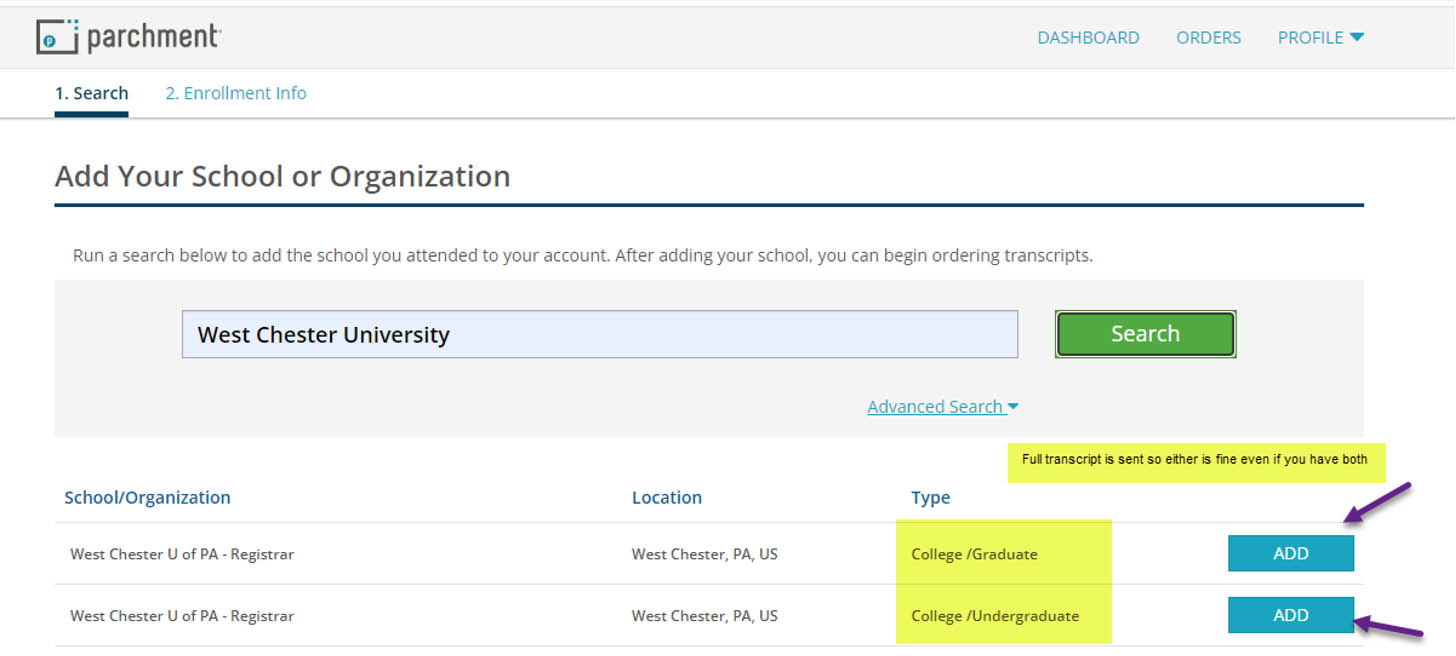
Fig. 5: Add Your School screen - Enter your Enrollment Information so Parchment can locate your WCU record.
- Include your enrollment status, first year of attendance, last year of attendance, your student ID number (if known), and the last 4 of your SSN.
- If you attended under a different name, choose Other name variation or maiden name and enter the name you used while you were enrolled.
- Tap Continue. Parchment will display your available credentials. Order your replacement credential now or log in later to complete.
ORDER YOUR REPLACEMENT CREDENTIAL
Select Order
Login to Parchment, and select the green Order button next to the Replacement Credential you need (either
Diploma or Certificate).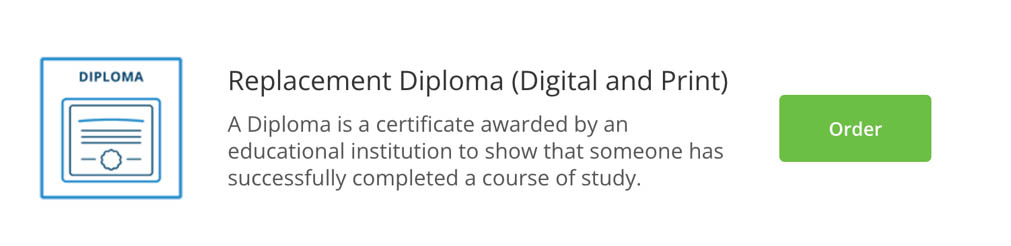
Fig. 6: Order button in Parchment
Set Delivery Destination
- Select I’m sending to myself or another individual (Fig. 7).

Fig. 7: Set Delivery Destination screen - Enter the mailing address carefully. Orders cannot be re-routed (Fig 8).
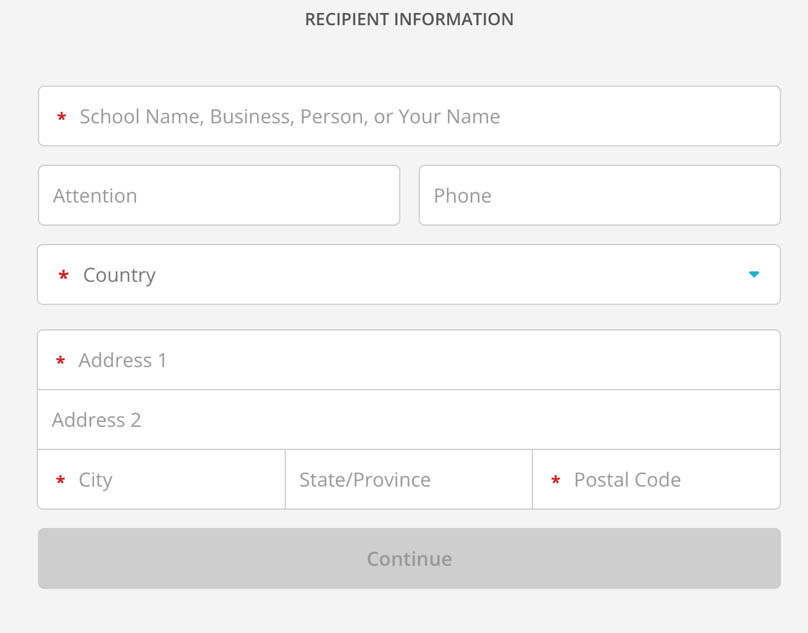
Fig. 8: Recipient Information screen
Complete the Item Details
- Confirm the From field shows West Chester University and the To field matches your recipient information.
- Choose the Degree Type and enter your Major and Graduation Year.
Note: Corrections cannot be made after submission, so review all details before continuing.
Finalize Your Order
- Sign your order and review the Order Summary.
- Enter your payment information and Submit.
- Watch for a confirmation email at the address in your Parchment profile.
- Your card will not be charged until the order is processed. It can take up to two weeks to process.
- After your order has been reviewed by WCU and processed, you will receive an email with your link to your digital credential. You can use it to view and share your WCU credential.
For support, please submit an AES Support Portal ticket.