

Self-Service Upload Form
Last edit date: 12/02/2025
Purpose: The Self-Service Upload Form provides a way for students to securely upload files to select offices on campus. This limits paper forms and email correspondence.
| Contents |
|---|
| Navigation |
| Upload Documents |
NAVIGATION
- Log into RamPortal – ramportal.wcupa.edu
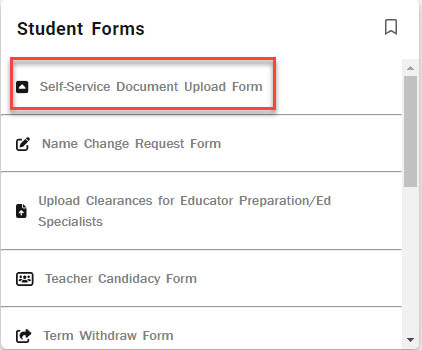
- Locate the Student Forms card. For help with finding cards, visit Home Page Navigation: A Guide to the RamPortal Home Page
- Click on the Self-Service Document Upload Form link.
UPLOAD DOCUMENTS
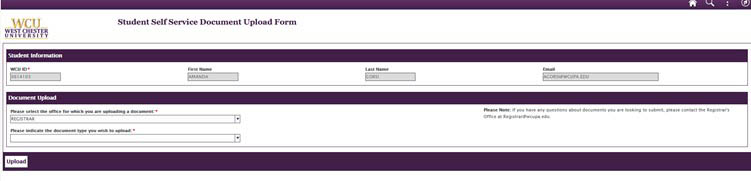
- From there, you will see the following screen. Your ID, First and Last Name, Email
are automatically populated. You cannot make changes to these fields.
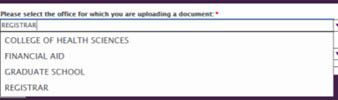
- Please select the office you wish to upload documents to from the list below.
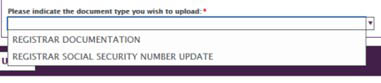
- If applicable, select the type of documentation you are uploading.
- Upload your document!
- Tips:
- If submitting documentation for an address update, you must provide a picture of your State ID or Driver's License. Your state issued ID will be used to confirm your identity and your address on record will be updated with the address on your state ID.
- If you receive an error message when you attempt to upload your document, please close your myWCU and browser and clear your entire history/cache.
- You cannot upload a Microsoft Word document (.doc), it must be saved as an Adobe PDF (.pdf).
- You must use a computer to complete this task, the form will not accept mobile uploads.

- Tips:
- Once your form has been uploaded, please hit "Upload"

- You will receive a confirmation message that your form has been submitted.
For support, please submit an AES Support Portal ticket.