

RAM Portal Term/University Withdraw Request
Purpose: To instruct students on how to submit a Term/University Withdrawal Request
| Contents |
|---|
| Step 1: Accessing the Form |
| Step 2: Form Logic & Questions |
| Step 3: Submission Eligibility |
| Step 4: Finalizing the Request |
STEP 1: ACCESSING THE FORM
- Navigate to the RamPortal login and use your West Chester University credentials.
- Locate the Card: Find the Student Links card. Helpful Hint: If this card is not appearing on your home screen, use the search
feature to View All Cards (see Fig 1).

Fig 1 - Open the Link: Select Term/University Withdrawal Form. The form will open in OnBase and automatically populate with your student information
(Fig 2).
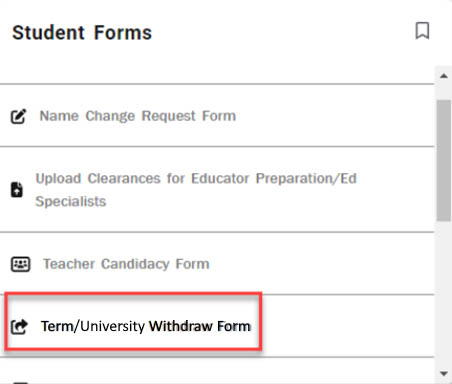
Fig 2
STEP 2: FORM LOGIC & QUESTIONS
The form uses dynamic logic. Depending on your first answer, you will follow one of two paths:
Path A: Currently Enrolled Students; When you answer "Yes" to being enrolled for the current term:
- You will be asked if you wish to withdraw from all current term courses.
- You must select the specific Term for withdrawal from the dropdown.
- You will be asked if you plan to return to West Chester University.
Path B: Students Not Currently Enrolled; When you answer "No" to being enrolled for the current term:
- The form will skip directly to: "Do you plan to return to West Chester University?"
Important: Answer Locking Fields lock immediately after selection. You cannot click back into a field to change it. If
you make a mistake, you must use the Reset Form button to clear the document and start over (Fig 3).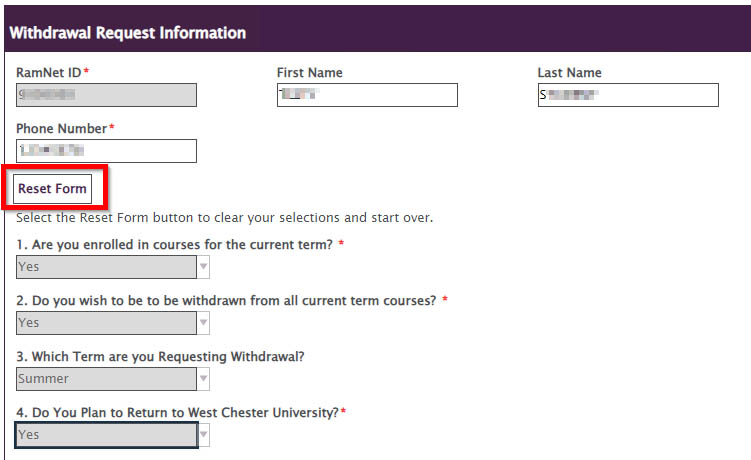
Fig 3
STEP 3: SUBMISSION ELIGIBILITY
Please note the following restriction regarding submission:
- Submission Blocked: If you answer "No" to being enrolled AND "Yes" to planning to return, you are not actually requesting a withdrawal. In this case, the Submit button will remain disabled, as no action is required from the Registrar.
- Please close the form and contact the Registrar’s office with any questions at Registrar@wcupa.edu.
STEP 4: FINALIZING THE REQUEST
- Review Terms: Based on your answers, specific terms and conditions will appear. Please read them thoroughly.
- Electronic Signature: You must provide an electronic signature at the bottom of the page.
- Submit: Click Submit. You will receive confirmation once the request is successfully transmitted.
For support, please submit an AES Support Portal ticket.