

Transcripts: Order an Official Transcript
Last edit date: 09/29/2025
Purpose: This guide provides instructions for current and former West Chester University students to order an official transcript.
| Contents |
|---|
| Before Your Order |
| Active Students: Start in RamPortal |
| Former Students: Start in Parchment |
| Set Up an Account in Parchment |
| Order Your Transcript |
Before You Order
- In-progress courses will not appear on your transcript until grades are posted.
- Some holds may prevent or delay transcript processing. Check the Holds card in RamPortal before ordering.
Active Students: Start In RamPortal
You are considered an active student if you are currently enrolled or if you have taken a course within the last semester.
- Login to RamPortal using your WCU Single Sign On (SSO).
- Locate the Official Transcripts card on your home page (Fig. 1).
- Select the Order Official Transcripts button.
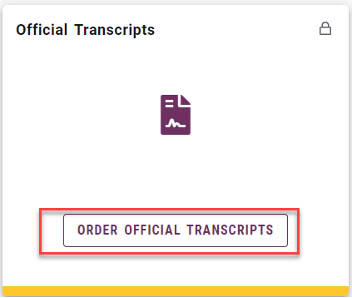
Fig. 1: Official Transcripts Card in RamPortal - You will be redirected to the Parchment website. First time users continue to Set Up an Account. Those with an account, can skip to Order Your Transcript.
Note: Students with certain holds may still place an order, but it will not process until reviewed.
Former Students: Start In Parchment
You are considered a former student if you are not currently enrolled and have not completed a course within the last semester, or if you have graduated.
- Go directly to Parchment.
- Sign in to your Parchment account. First time users will need to Set Up an Account.
- Returning users can continue to Order Your Transcript
Set Up an Account in Parchment
- Enter a personal email address (not your WCU email). Use one that you will still have access to after graduation or a job change.
- Enter your Personal Information, Contact Information, choose a Password and click Create Account & Continue button.
- A confirmation email will be sent to verify your identity. Check your email and enter the confirmation code.
- Tap the blue plus sign to begin.

Fig. 2: Add button to begin account set up - On the Add your School or Organization screen search for West Chester University and then tap Add (Fig. 3). Choose Graduate or Undergraduate. A full transcript is sent so either is
fine.
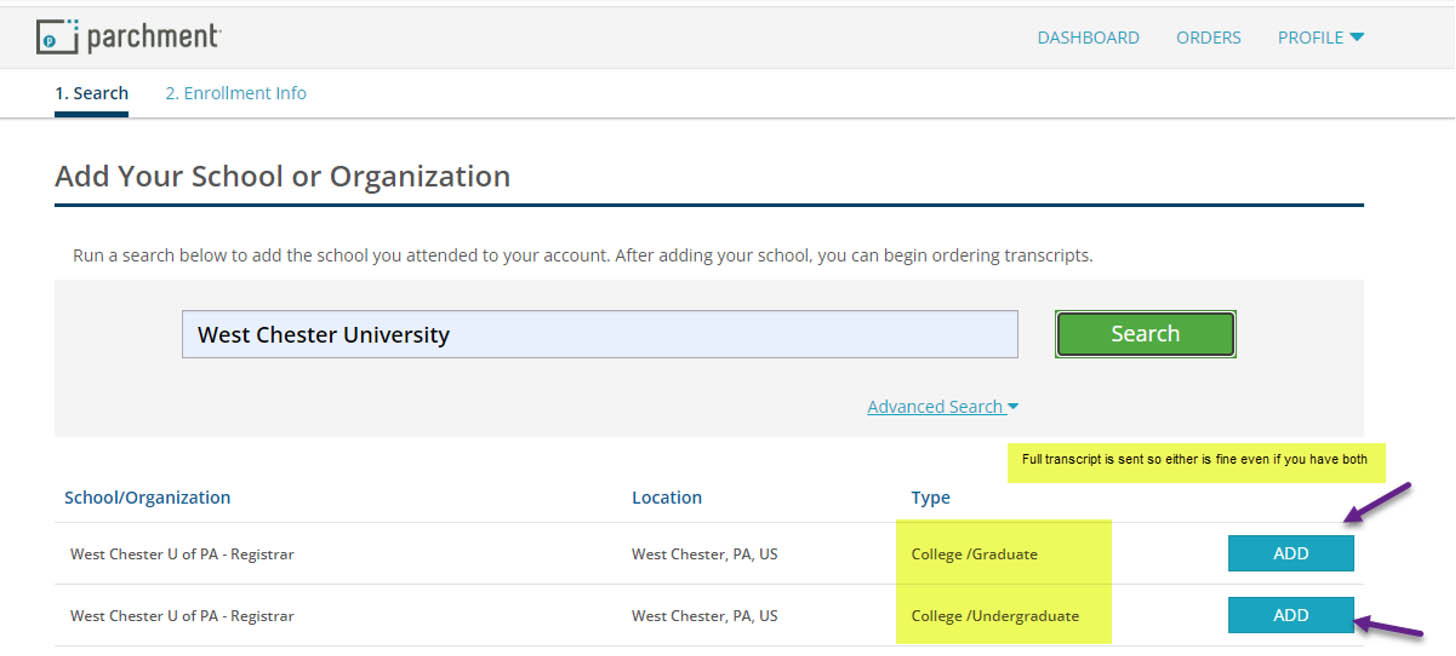
Fig. 3 - Enter your Enrollment Information so Parchment can locate your WCU record.
- Include your enrollment status, first year of attendance, last year of attendance, your student ID number (if known), and the last 4 of your SSN.
- If you attended under a different name, choose Other name variation or maiden name and enter the name you used while you were enrolled.
- Tap Continue. Parchment will display your available credentials. Order your transcript now or log in later to complete.
Order Your Transcript
Select Order
Login to Parchment, and select the green Order button next to Transcript.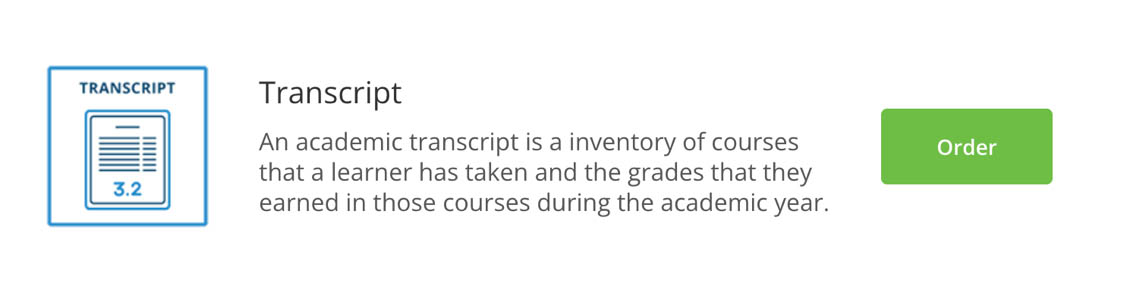
Fig. 4: Order button in Parchment
Set Delivery Destination
- Select I’m sending to myself or another individual (Fig. 5).
- If you are sending to a school, organization, or general department address, choose
I am sending this order to another individual and complete the Recipient Information screen (Fig. 6).
Note: If you send a transcript to yourself, it is no longer considered official once you forward or share it.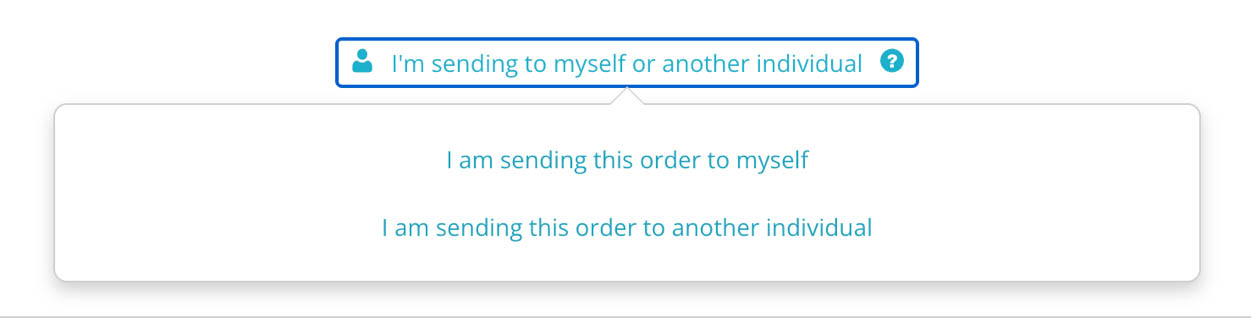
Fig. 5: Set Delivery Destination screen
- If you are sending to a school, organization, or general department address, choose
I am sending this order to another individual and complete the Recipient Information screen (Fig. 6).
- Enter the exact email for Electronic delivery or choose Print and Mailed to enter a mailing address.
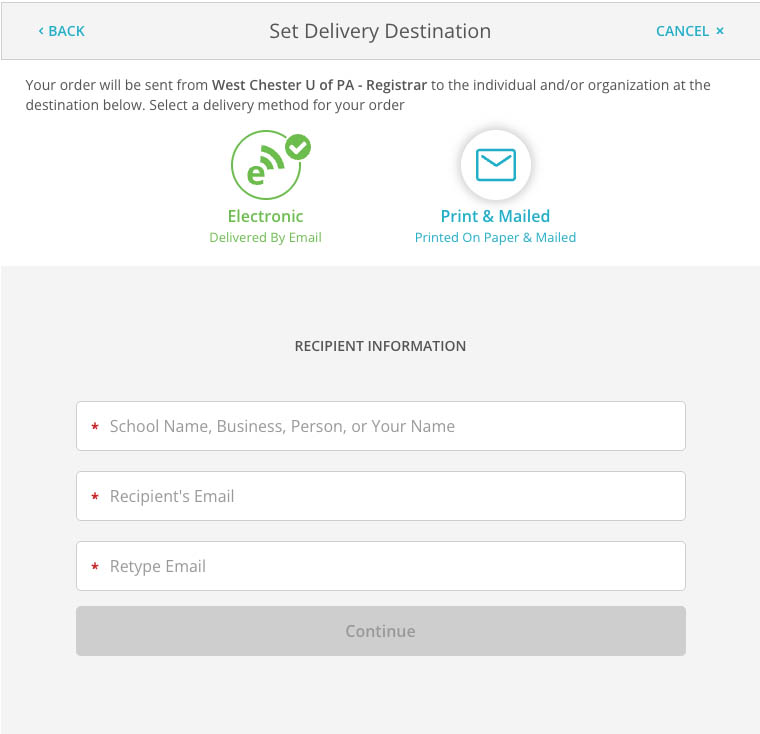
Fig. 6: Recipient Information screen - Orders cannot be re-routed, so double check for accuracy.
- Optional: Use the search bar to look up a school or organization and select it from
the list.
Note: When using the search bar feature, WCU does not manage or verify the Parchment address book.
Complete the Item Details
- Check carefully where the transcript is coming from and going to.
- Confirm the From field shows West Chester University and the To field matches your recipient information.
- Verify the delivery method and recipient information.
- Choose the Purpose from the dropdown menu.
- If a document must be sent with your transcript, like an application cover sheet,
select Add Attachment and upload your file.
Note: Corrections cannot be made after submission, so review all details before continuing.
Finalize Your Order
- Sign your order and review the Order Summary.
- Enter your payment information and Submit.
- Watch for a confirmation email at the address in your Parchment profile. For electronic orders, you will also receive a notification when your transcript is received and reviewed.
For support, please submit an AES Support Portal ticket.