
Information for Students
West Chester University is committed to ensuring the quality of the teaching and learning experience of our students. An important component of this is student feedback.
It’s quick.
Most students complete the survey in less than 5 minutes. The online system is mobile-friendly
and easy to use on the go!
It’s confidential.
Your instructor will never see your name or ID attached to your individual responses.
Your instructor will receive a results report of summarized data only and text from
open-ended questions as written. To protect your anonymity, please do not include
your name in the open-ended responses. Additionally, your feedback is not available
to your instructor until after final grades have been submitted and posted.
It’s not “just a formality.”
Instructors use this valuable information to improve and enhance their courses and
they appreciate the time you take to complete the survey and any individual comments
you may choose to add. As you complete the survey, try to put aside your reaction
to the course itself and focus on the quality of instruction provided by this instructor.
Did you know that instructors who are perceived as attractive get more positive feedback on average
than instructors who are not? Did you know that non-white instructors receive less
positive feedback on average? Instructors who do not conform to the cultural expectations
of what a stereotypical professor should be often receive less positive feedback.
Biases like these affect the way we perceive others and impact the feedback we give.
Please keep this in mind as you provide feedback on this and other courses.
100% online from any device.
Once the administration window opens for the semester, surveys are 100% online and
accessible from any device through:
- Email – Check your WCUPA email inbox for an invitation from SFI@wcupa.edu. This email contains links to your surveys.
- D2L – Your D2L home page provides links to your Student Feedback on Instructor surveys and will also provide pop-up reminders.
- Web Browser – You may also log in to the online platform through https://SFI.wcupa.edu. Please use your WCU credentials to log in - you will need to authenticate using Duo multi-factor authentication.
- Link - You may also use the link on the left menu of this page.
- QR code - You may also scan this QR code.
Student Resources
Student User Guide
The Student User Guide provides information on how to access and complete your Student Feedback on Instructor surveys.
Frequently Asked Questions
How do I access my Student Feedback on Instructor surveys?
Once the administration window opens for the semester, you may access your surveys using any of the following:
Email – Check your WCUPA email inbox for an invitation from SFI@wcupa.edu. This email contains links to your Student Feedback on Instructor surveys.
D2L – Your D2L home page provides links to your surveys and will also provide pop up reminders.
Web Browser – You may also log in to the online platform through https://SFI.wcupa.edu. Please use your WCU credentials to log in - you will need to authenticate using Duo multi-factor authentication.
Use the link on this web page labeled "Access the Online Survey System".
Use this QR code.

Surveys are accessible from any device.
One of my classes is missing from the list of surveys. Why?
If one of your classes is missing from the list of Student Feedback on Instructor surveys, it means your instructor doesn’t require a survey this semester.
I thought I completed the surveys for my courses. Why am I still receiving reminders?
To stop email reminders, submit your survey responses. Reminders are sent to students with any incomplete surveys.
Check that you submitted your survey. Your survey is incomplete until you click "Submit." Log in to the online survey platform at https://SFI.wcupa.edu to confirm you have submitted all your completed surveys. Under "Tasks" on your home screen you will see any surveys that are still in progress. Click the survey you would like to submit. Page to the end of the survey using the "Next" button and click the "Submit" button.
I don't have time to finish the survey right now. Will my answers be lost if I stop in the middle of a survey?
Any responses you have given so far will be saved. You will continue to receive reminders until your survey has been submitted.
You may return to the survey before the survey administration window closes to finish entering your responses. Be sure to submit your responses by clicking "Submit" on the final page.
Your feedback is important!
Can I make changes to a survey after it is started or after I submitted it?
To make changes to a survey after you have started (but not submitted) it, sign into https://SFI.wcupa.edu. Under "Tasks" on your home screen you will see the surveys available to you, click the survey you would like to modify. The survey for the selected course will open to allow you to make changes to your previous responses. Ensure you click "Submit" to save your new response.
Please note once the survey has been submitted, changes cannot be made to the survey.
Once the survey administration window has closed, no further changes can be made.
I forgot to complete my surveys and the administration window has ended. Can I still complete a survey?
No. Once the survey administration period has ended, surveys cannot be reopened.
Will my instructor know that I responded? Will it affect my grades?
Your instructor will not know if you responded. They will know what percentage of your class responded to the survey.
Your response will not affect your grades as your personal information is never shared with the faculty. Summary results are not released to faculty until after final grades have been posted for the semester.
Why do I need to complete an online Student Feedback on Instructor survey? How are the results used?
Results are used to improve teaching and learning at the University and are included in the faculty review, tenure, and promotion processes.
Summary results of Student Feedback on Instructor surveys are shared with the faculty and academic administrators.
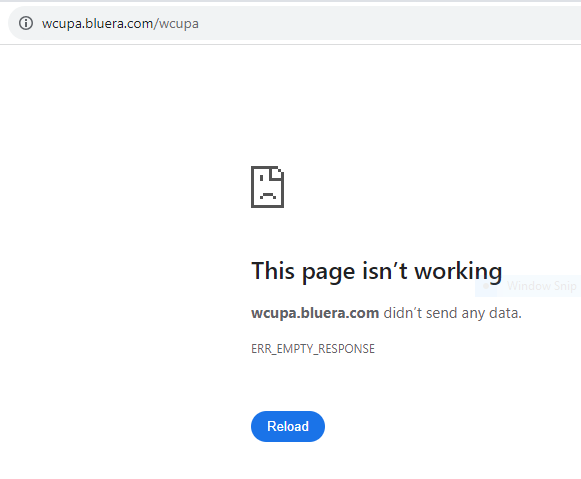
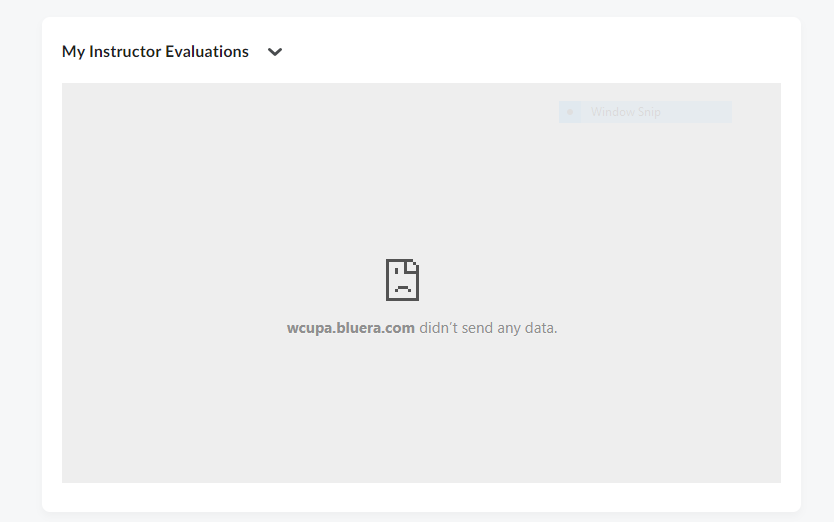
Why do I get an error message when I attempt to access my survey using a work laptop?
If you experience issues accessing your surveys, it is possible that your device has settings configured on it that are designed to limit access to certain websites (for example, sometimes a business will add settings like this on a computer that they issue to their employee). In this situation, we suggest completing the survey using a personal device (computer, tablet, or phone). You may also use a computer provided in one of the on campus computer labs.
Examples of error messages indicating an access issue are below.
Need More Help?
If you still have questions, please email us at SFI@wcupa.edu.