

Class Registration: How to Drop or Withdraw from a Class
Purpose: This guide provides instructions for students to drop or withdraw from a class in RamPortal.
| Contents |
|---|
| Navigation |
| Drop or Withdraw from a Class |
| Drop or Withdraw after the Deadline |
| Troubleshooting |
NAVIGATION
- Login to RamPortal using your WCU Single Sign On (SSO).
- Locate the Register for Classes card on your home page and click the Register button.
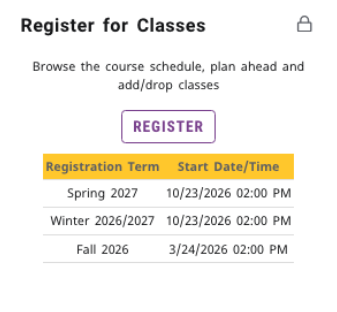
Fig 1: Register for Classes Card - Choose your desired Term and Date Range.
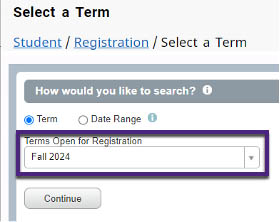
Fig 2: Select a Term showing Terms Open for Registration drop-down - Locate the Summary window on the bottom right of the Registration page (See Fig 3 below).
Note: If you don’t see the Summary window, refer to the Troubleshooting section at the bottom of this guide.
DROP OR WITHDRAW FROM A CLASS
- In the Summary window, find the row for the course you want to drop or withdraw.
- Go to the Action column and use the drop-down menu to select the appropriate option (i.e. Drop Course or Withdraw).
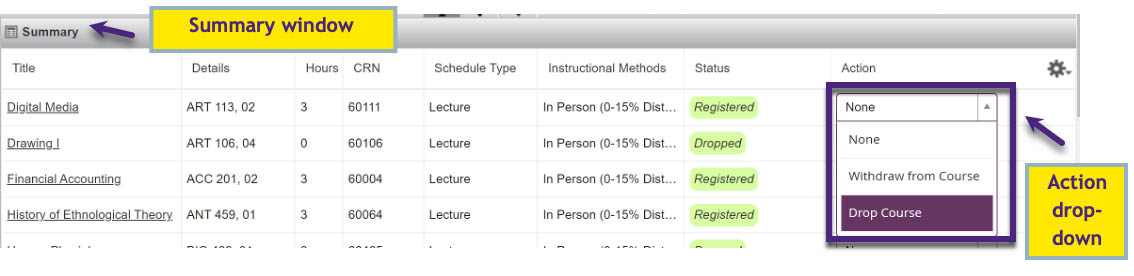
Fig 3: Summary window showing the Action drop-down options - Click Submit at the bottom right of the page to complete the process.
- You will see the Save Successful message confirming your change.
Important: Dropping or withdrawing from a class may affect your financial aid, tuition charges, or academic progress. For key deadlines and more information, visit the Registrar's Registration FAQs.
DROP OR WITHDRAW AFTER THE DEADLINE
Drop and withdraw deadlines vary by Part of Term. Check the Academic Calendar for deadlines that apply to your course.
For information on dropping or withdrawing from a course after the deadline, please review the Registrar's Registration FAQs.
- To withdraw from ALL classes after the drop deadline, you must submit the Term Withdraw Form.
- Requests after the deadline, including drops after the drop deadline, course withdraws after the course withdraw deadline, and term withdraws after the term withdraw deadline, require a petition for exception. Use one of the forms below.
Petition for Exception to University Policy Undergraduate Student
Petition for Exception to University Policy Graduate Student
TROUBLESHOOTING
If you don’t see the Summary window, it may be hidden. Try the following:
- Use the Panel icon in the bottom left corner to show or hide panels.
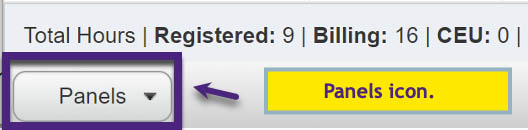
Fig 4: Panel icon used to show and hide panels. - Use the Toggle arrows or drag the divider bar to resize windows.
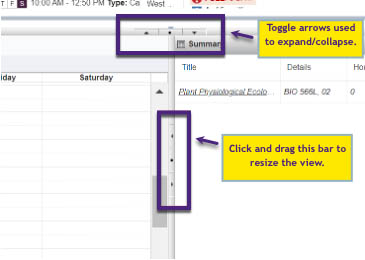
Fig 5: Panel toggle arrows and divider bar. - On a Windows device: Press Ctrl + Alt + V to show/hide windows and Press Ctrl + Alt +C to reset panel views
- On a Mac device: Try Control + Option + V or Control + Option + C or use the manual panel options above.
For support, please submit an AES Support Portal ticket.