

Personal Information: How to Update My Personal Information
Purpose: This guide explains how students can view and update personal information in RamPortal including preferred name, pronouns, gender identity, email, phone number, and address.
Instructions for students to request a legal name change are available here: Legal Name Change Instructions
| Contents |
|---|
| Navigation |
| Update Personal Information |
NAVIGATION
- Login to RamPortal using your WCU Single Sign On (SSO).
- Locate the My Personal Information card on your home page and click the My Profile Info button.
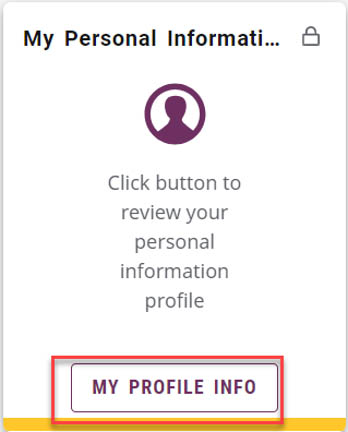
Fig. 1: My Personal Information Card
UPDATE PERSONAL INFORMATION
On the Personal Information Page, review each block for accuracy. The left box displays your profile picture, name, ID number, WCU email address, local address and phone number. This is view only. To make edits use the boxes to the right.
Editing Steps
- To update Personal Details (Preferred name, Personal Pronouns, and Gender Identification) click the pencil icon in the Personal Details block (see Fig. 2).
- To update email, phone number, or address, use the pencil icon to update or the Add New to add.
- Address updates: If entering a temporary housing address, include start and end dates using the Valid From and Valid Until fields (see Fig. 3).
- If you add a new email, phone, or address, use the trash can icon to delete any outdated entries that are no longer in use (see Fig. 2).
- Update fields and tap Update to save.
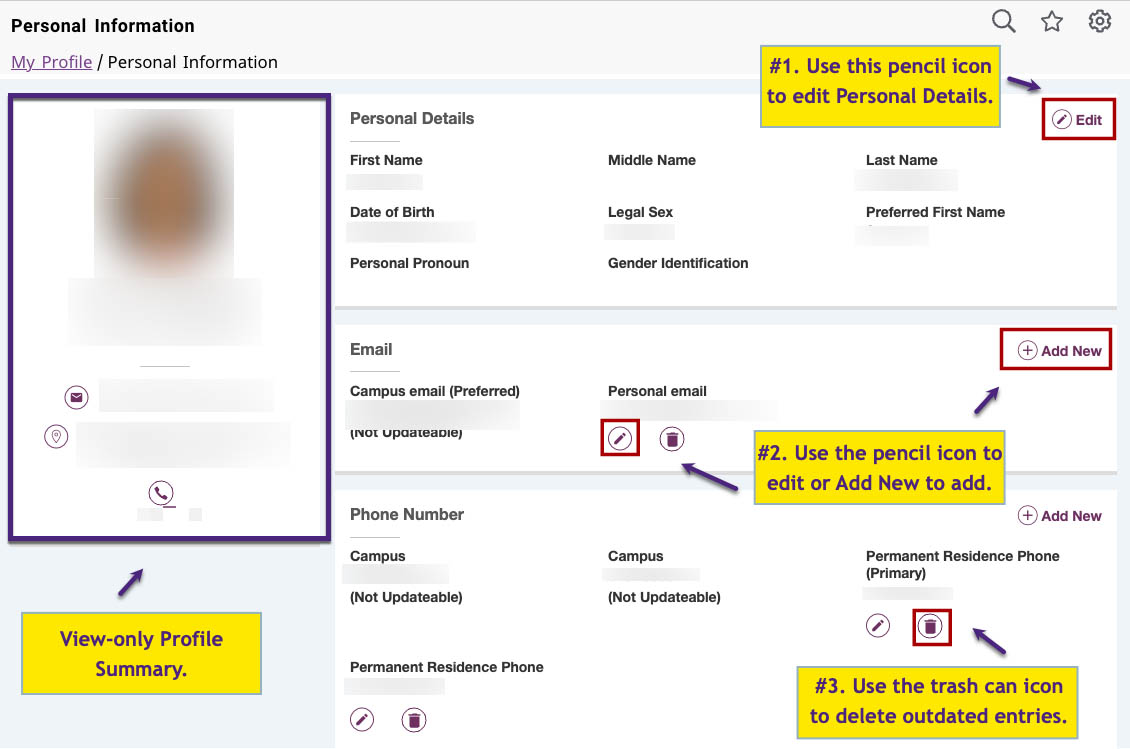
Fig. 2: Personal Information Page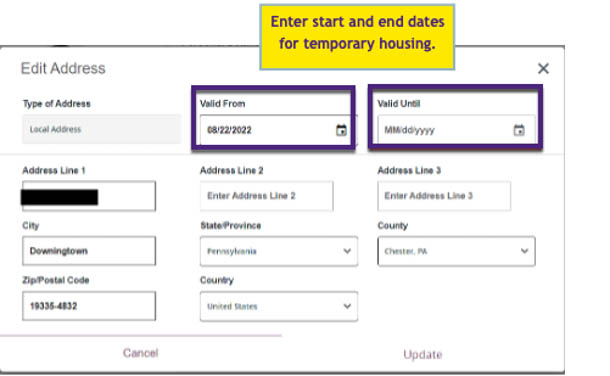
Fig. 3: Edit Address Window
For support, please submit an AES Support Portal ticket.