

Financial Aid: View and Understand Your Offer
Last edit date: 4/23/2026
Purpose: This guide explains how to view your financial aid offer, complete required actions, and review financial aid information in RamPortal. For additional Financial Aid information, visit the WCU Financial Aid website.
| Contents |
|---|
| Navigation |
| Complete the Responses Required Section |
| Review the Student Requirements Section |
| Review Your Financial Aid Offer |
| View Additional Information |
NAVIGATION
- Log in to RamPortal using your WCU Single Sign On (SSO).
- Locate and open the Financial Aid card on your home page.
COMPLETE THE RESPONSES REQUIRED SECTION
- On the Home tab, review the Responses Required section.
- Select the View Questions button to answer questions from the Financial Aid Office. See Fig 1.

Fig 1 - Answer each question using the dropdowns and then select Submit.
Questions may include:
- Title IV Authorization: Allows eligible excess federal financial aid to be applied toward charges other than WCU tuition and fees including USH.
- Title IV Prior Year: Allows eligible excess federal financial aid to be applied toward prior year charges up to $250.
- Housing Status: Confirms your housing plans for financial aid purposes.
REVIEW THE STUDENT REQUIREMENTS SECTION
- On the Home tab, review the Student Requirements section for any outstanding items that are required for your Financial Aid.
- Select the arrow next to each requirement to expand and view details.
- Some requirements may need to be completed in RamPortal or on other financial aid websites such as Campus Logic or StudentAid.gov, where students accepting federal loans may be required to complete a Master Promissory and Entrance Counseling. For more information, visit the Financial Aid webpage.
- Read each requirement carefully to determine whether action is needed or if it is only a notification.
REVIEW YOUR FINANCIAL AID OFFER
- Select the Offer Tab.
- Use the Aid Year dropdown to select the correct academic year.
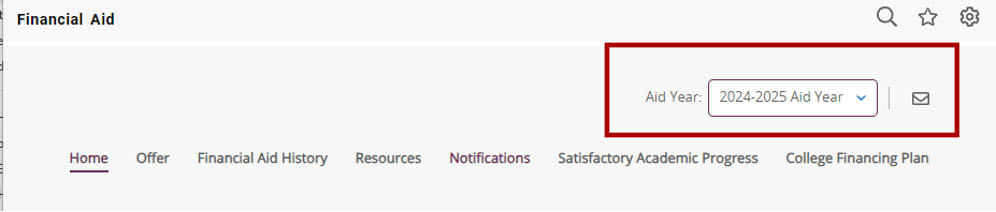
Fig 2 - Review the expandable sections on the page for additional details.
- Available sections may include:
- View Your Payment Schedule: Shows when aid is expected to be disbursed to your account.
- Expected Enrollment Status: Shows the enrollment status used for your aid calculation. If your status changes, contact the financial aid office.
- Cost of Attendance: Estimated educational costs for the academic year.
- Net Cost: Cost of Attendance minus grants and scholarships.
- In the Options to Pay Net Cost section, use the Take Action dropdown next to a loan offer to Accept, Decline, or Modify. Then select Submit. See Fig 3.
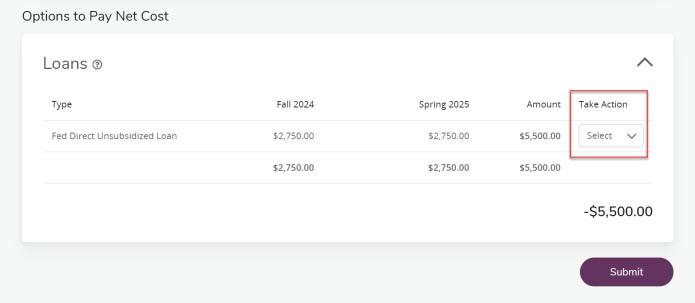
Fig 3 - Complete the Financial Terms and Conditions and select Accept Award.
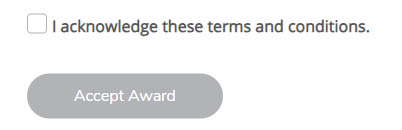
Fig 4 - After accepting, your updated loan decision will be displayed in the Amount column.
See Fig 5.
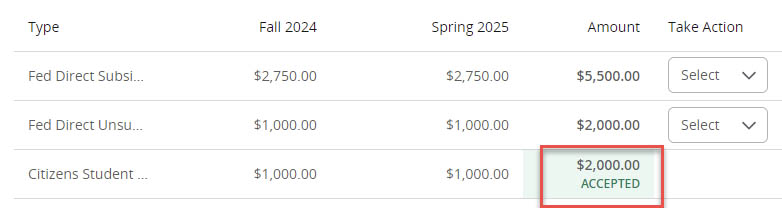
Fig 5
VIEW ADDITIONAL INFORMATION
Use the remaining tabs to review other financial aid details:
- Financial Aid History: View financial aid from previous academic years. If you need more detailed historical information, contact the Financial Aid Office 610.436.2627 or email at Finaid@wcupa.edu.
- Resources: Access helpful information.
- Notifications: Review important messages related to your financial aid.
- Satisfactory Academic Progress (SAP): View your SAP status for financial aid eligibility. The effective year and status are displayed in this section.
For support, please submit an AES Support Portal ticket.