
Placement Journey: Transfer Student Guide
Last edit date: 05/18/2026
Purpose: This guide explains how Transfer students can complete their Placement Journey, including any required tasks, surveys, placement tests, and how to view your scores in RamPortal.
| Contents |
|---|
| Before You Start |
| Access Your Placement Journey |
| Complete Your Placement Tasks |
| View Scores |
| Contact Information |
BEFORE YOU START
- Use a desktop or laptop computer to complete the placement exams.
- Mobile devices are not recommended.
ACCESS YOUR PLACEMENT JOURNEY
- Navigate to wcupa.navigate.eab.com and select Login with your school account (see Fig 1).
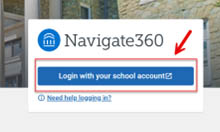
Fig 1 - Use your West Chester University RamNet ID Username to login: ex: 3012345@wcupa.edu or JD123456@wcupa.edu.
- Select Journeys from the left menu (see Fig 2).
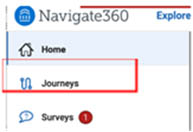
Fig 2 - Click on the Placement Journey assigned to you (see Fig 3).
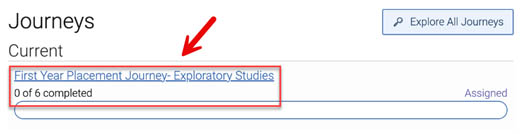
Fig 3
COMPLETE YOUR PLACEMENT TASKS
- Select a task to begin. A sample of a journey is shown below, but remember each student
receives different tasks (see Fig 4).
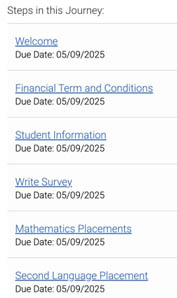
Fig 4 - Follow the instructions for the selected task.
- To mark the task as completed, click on the Completion Reason drop-down and select This is completed (see Fig 5).
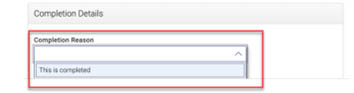
Fig 5 - Click on the Go Back button at the top of the page to return to the Journey menu (see Fig 6).
Fig 6 - The Student Information task will direct you to complete a survey. The survey is located in the lefthand
menu under Surveys (see Fig 7).
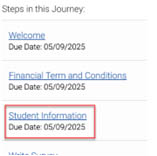
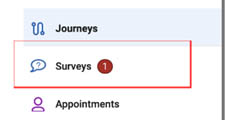
Fig 7 - Some tasks in your Placement Journey include Placement Exams and may not apply to
all students. Complete any assigned tests and then return to Navigate to mark the
task complete.
- Math Placement exam link will take you to the ALEKS website
- Write Survey Exam will take you to D2L
- Foreign Language will take you to the Emersion website.
- Once all tasks are complete, a confirmation message will display indicating that your Placement Journey is complete.
VIEW SCORES
- Log in to RamPortal at ramportal.wcupa.edu.
- Locate the Placement Exams card on your homepage (see Fig 8).
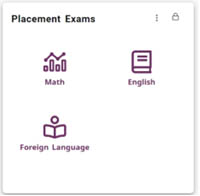
Fig 8 - Select a subject to view your score or access the exam if you have not taken it yet
(see Fig 8).
- Note: Only Placement Exams assigned to you will appear.
- Your score will be displayed at the top of the card once the exam is completed (see
Fig 9).
- Note: If you do not have any placement exam scores, you will see a message stating you do not have any placement exam scores.
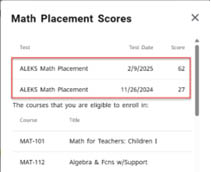
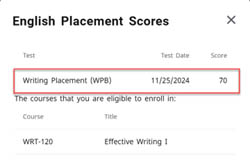
Fig 9
CONTACT INFORMATION
- Mathematics Placement Test: Please visit the Mathematics Placement Test site.
- HonorLock browser extension: Please visit the HonorLock site.
- Write Survey: Please visit the Write Survey site.
- Foreign Language Placement: please visit the Foreign Language Placement website.
- Transfer Concierge Information: Email transfer@wcupa.edu.
- For any additional support, please submit an AES Support Portal ticket.
- For RamNet ID login troubleshooting and support, please contact the WCU Help Desk: 610-436-3350.
For support, please submit an AES Support Portal ticket.