

Inactive Student Resource Page
Last edit date: 2026-07-07
This guide shows recently graduated, inactive students, and alumni how to access and use the Student Resource Card. After graduation or becoming an inactive student, you lose many cards on your RamPortal homepage because your student status is no longer active. The Student Resource Card and Student Resources Page is a central location where you can get temporary access to important information that you may still need.
| Contents |
|---|
| Reactivation |
| Navigation |
| Contact Information |
| Personal Information |
| Student Records |
| Student Financials |
| Student Forms |
REACTIVATION
Reactivate your previous WCU Credentials. Note: Recently Graduated students should not have to reactivate their account.
- If your student status has been inactive for more than 90 days, you may receive an error message when attempting to log into RamPortal. If you are experiencing issues logging in, please follow the steps below.
- Contact the IS&T Help Desk at 610-436-3350 to request a temporary 24-hour reactivation of your WCU Credentials.
- Follow the steps provided to reset your password.
- You are now set to log into the Student Resources Page.
NAVIGATION
- Log into RamPortal – ramportal.wcupa.edu
- Locate the Student Resources Card on your RamPortal home page and click the Student Resources button (Fig 1).
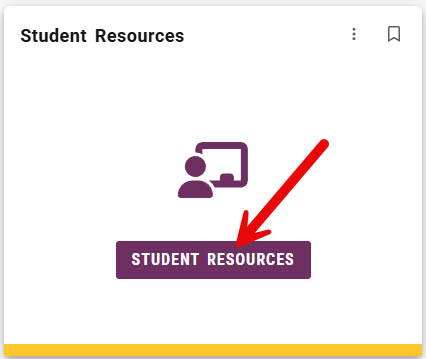
Fig. 1 - The Student Resource landing page will be displayed (Fig 2).
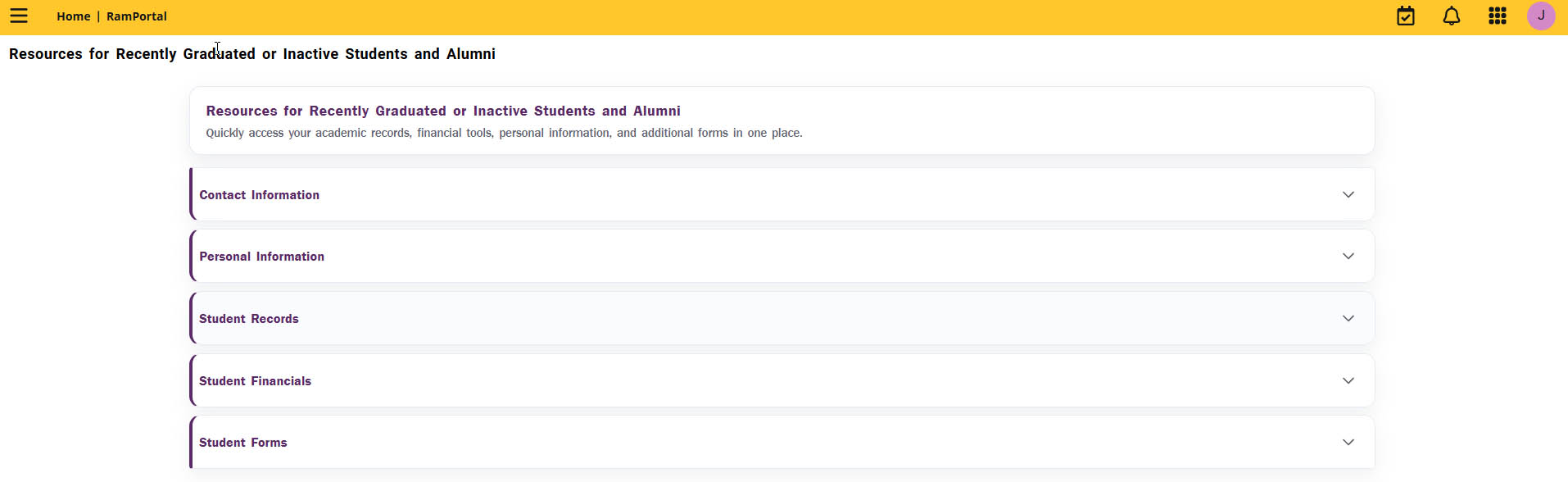
Fig. 2
CONTACT INFORMATION
To update your Contact Information, click on Contact Information from the menu (see Fig. 2) to have the options drop down.
- Click EDIT (see Fig. 3) and update the value for Permanent Address, Local/Mailing Address, and/or
your email addresses.
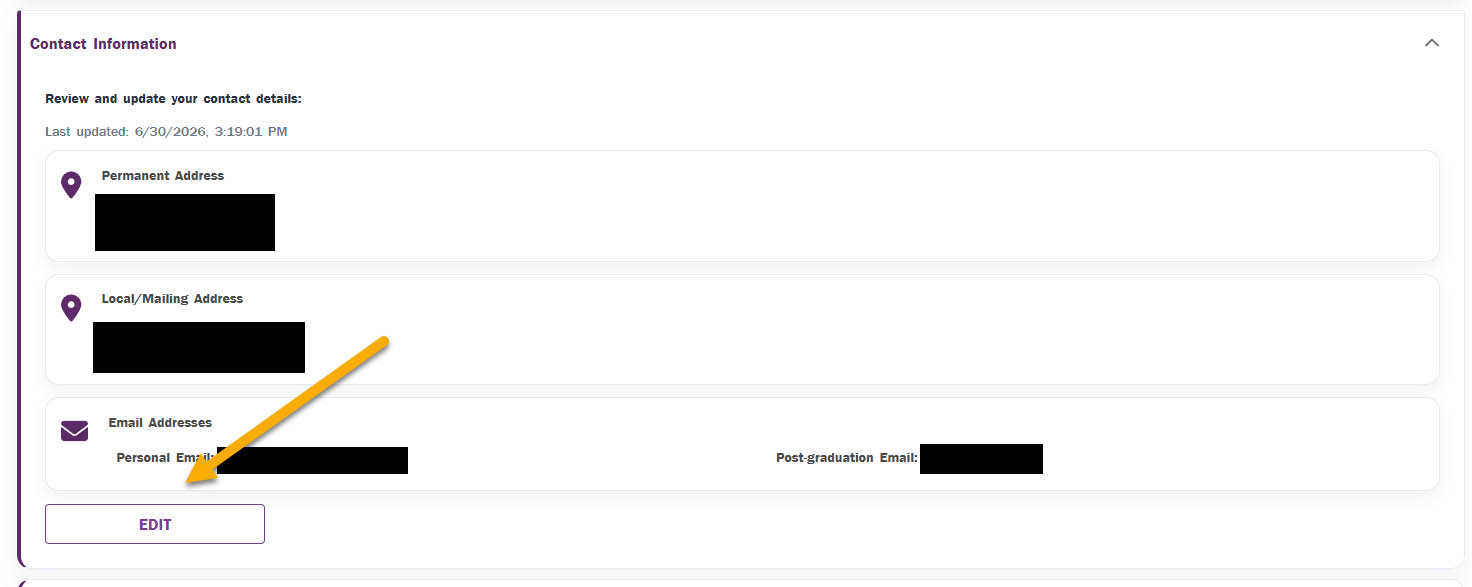
Fig. 3 - Upon completion of your updates, click SAVE (see Fig. 4). Your contact information is now updated.
- If you change your mind and do not wish to update your contact information, click
CANCEL (see Fig 4).
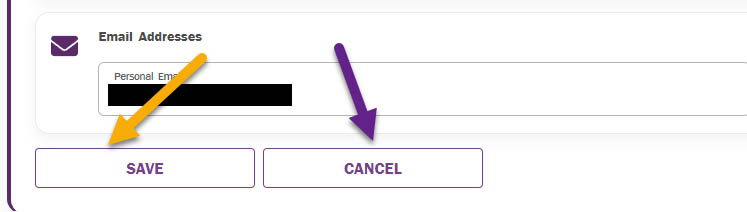
Fig. 4
PERSONAL INFORMATION
To update your Legal Name or your Social Security Number, click on Personal Information from the menu (see Fig. 2) to have the options drop down.

Fig. 5
- Name Change Request Form: Please follow the directions on this guide Legal Name Change Request Form to update your Legal Name.
- Social Security Number Update: Please follow the directions on this guide How to Update Your Social Security Number for updating your Social Security Number using the Self-Service Document Upload Form.
STUDENT RECORDS
To obtain information regarding your academic history at WCU click Student Records from the menu (see Fig. 1) to have the options drop down.
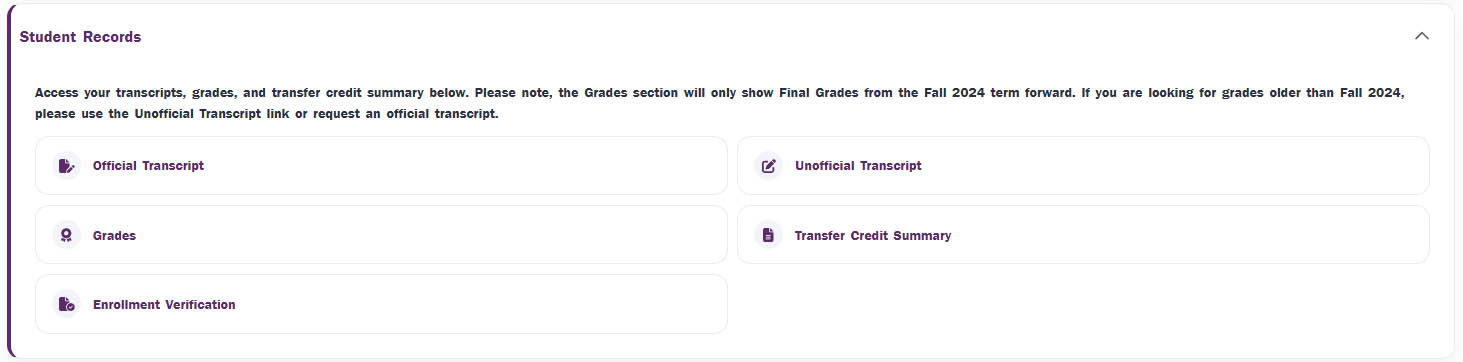
Fig. 6
- Official Transcript: Follow the directions on the Ordering Official Transcript guide but select the form from the Student Resource page instead of the card on the RamPortal homepage.
- Unofficial Transcript: Follow the directions on the Access Unofficial Transcript guide but select the form from the Student Resource page instead of the card on the RamPortal homepage.
- Grades: Follow the directions on the View Grades guide but select the form from the Student Resource page instead of the card on the RamPortal homepage. Please note, Final Grades on this card are only available from Fall 2024 forward. If you are looking for grades older than Fall 2024, please use Unofficial Transcript link.
- Transfer Credit Summary: Follow the directions on the Transfer Credit Summary Instruction Guide to understand your transfer credit summary.
- Enrollment Verification: Follow this link to the Registrar’s Enrollment Verification Page for more information on how to access an enrollment verification for a past term.
STUDENT FINANCIALS
To pay past due bills or review your billing statements, click Student Financials
(see Fig. 2) to have the options drop down.
Fig. 7
Additional information regarding your previous billing statements or other student financials related questions, navigate to the RamPortal Tutorial Page and click on the Bursar and Financial Aid link found on the left-hand side.
STUDENT FORMS
To access Petition forms, click Student Forms (see Fig. 8) to have the options drop down.

Fig. 8
- Petition for Exception to Policy – Graduate Student form: Follow the directions on the Petition – Graduate Students guide but select the form from the Student Resource page instead of the card on the RamPortal homepage.
- Petition for Exception to Policy – Undergraduate Student: Follow the directions in the (Petition – Undergraduate Students) guide but select the form from the Student Resource page instead of the card on the RamPortal homepage.
For support, please submit an AES Support Portal ticket.